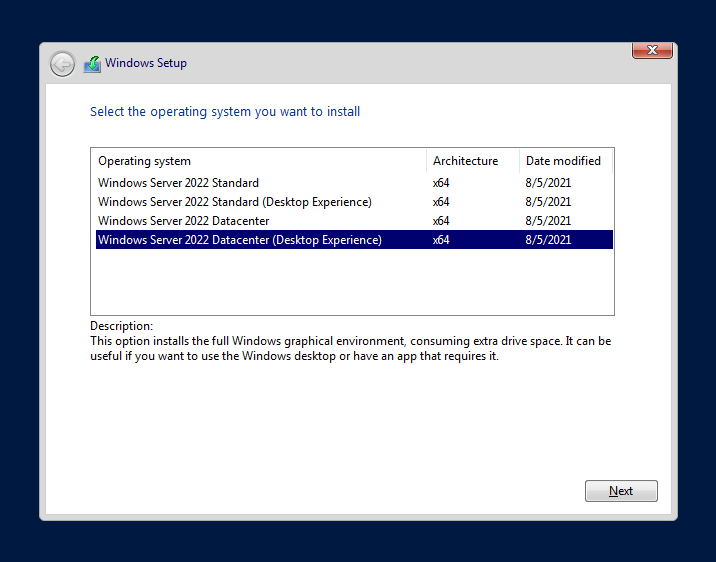

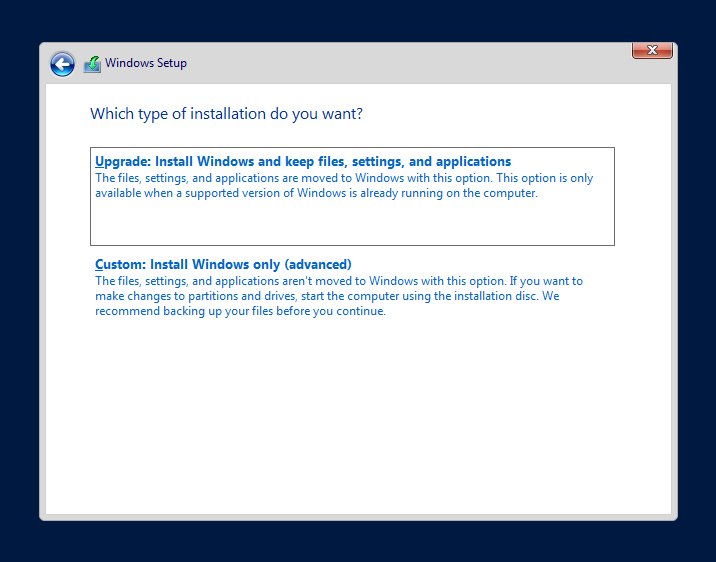
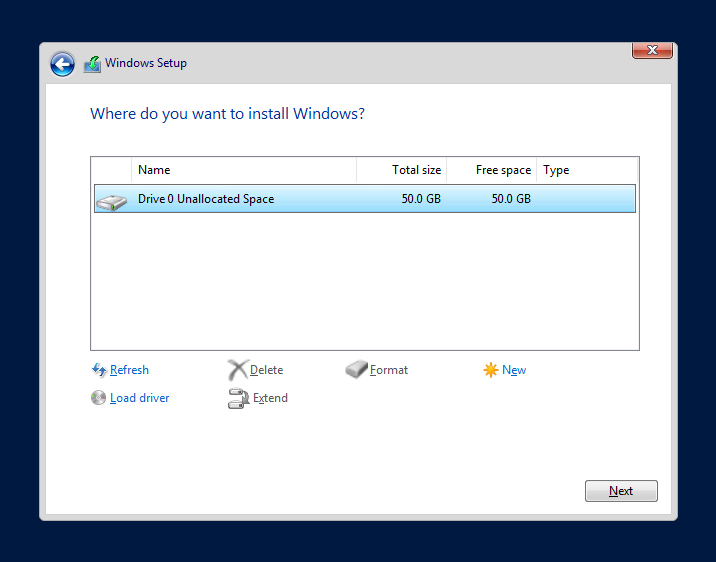
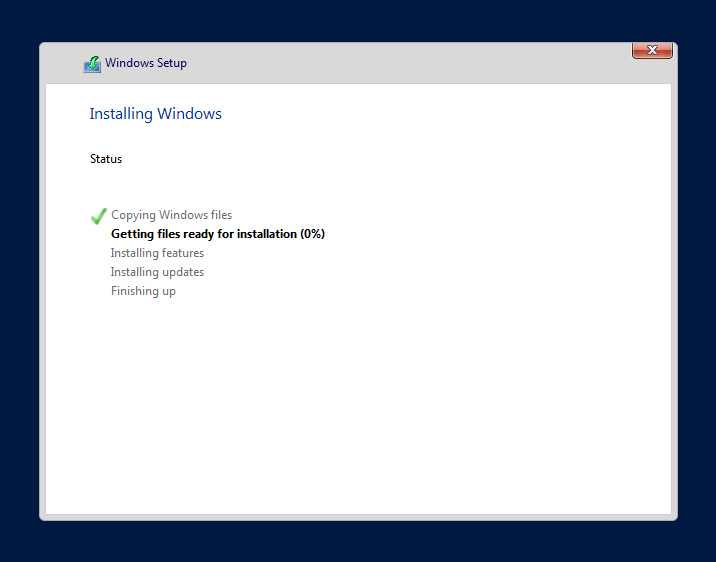

This guide shows you how to install and activate Windows Server 2019 Datacenter (Desktop Experience). The process is the same for Windows Server 2019 Standard (Desktop Experience).
Before installing, please make sure that your new computer meets the minimum system requirements:
- processor: 1.4 GHz
- memory: 512 MB (Server Core), 2 GB (Desktop Experience)
- hard disk space: 32 GB
- screen resolution: 1024×768 or higher
- network adapter: Ethernet (at least 1 Gbit throughput)
Additionally, you need:
- an empty USB drive of minimum 8 GB;
- another computer with an internet connection and at least Windows 10 or newer installed on it.
Step-by-step guide
I. Create a bootable USB drive
- Insert the USB drive that you want to use as your installation media into the computer which already has an operating system. Make sure you know which drive letter it’s been assigned (D, E, F, etc.).
- Go to the Forscope Software Asset Management portal and login with your email and order number.
- Download your Windows Server ISO file.
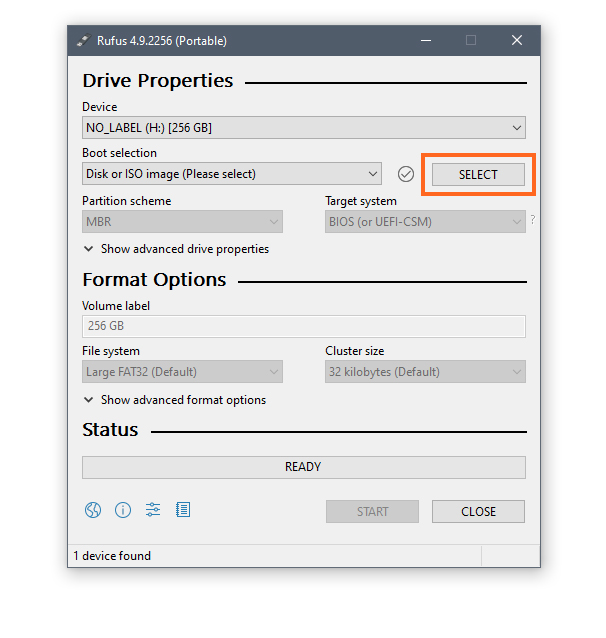
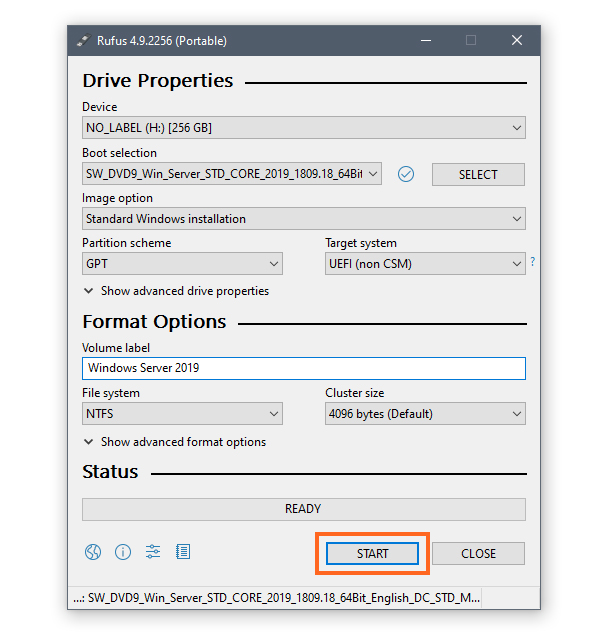
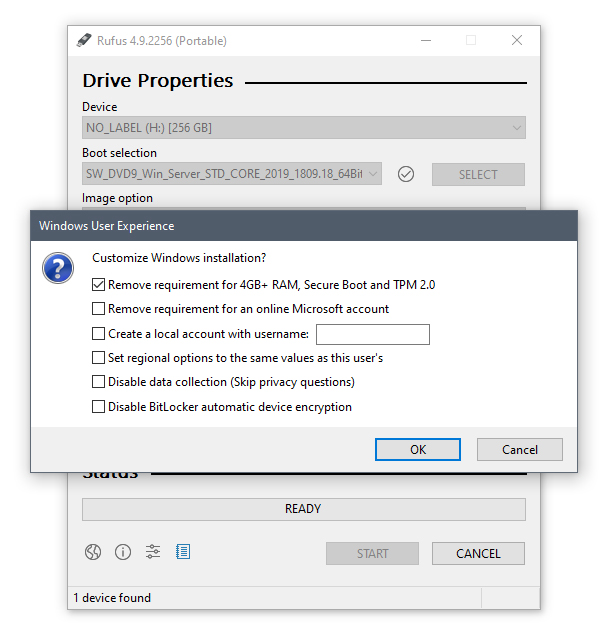
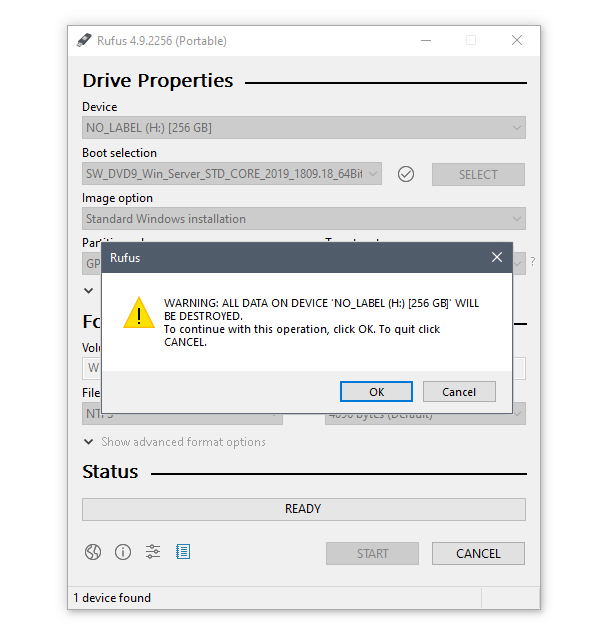
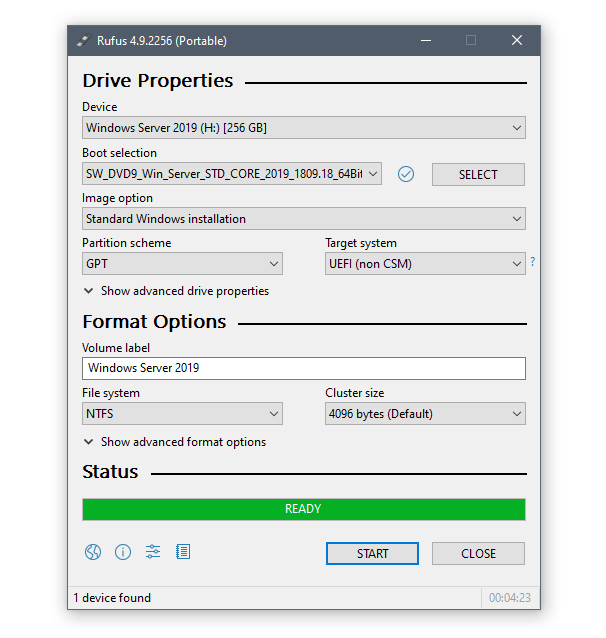
- Procure an ISO mounting software of your choice in order to create the bootable USB. This guide uses the free portable Rufus tool – a very lightweight program dedicated to creating bootable USB drives that doesn’t require installation.
- Run the Rufus executable file and follow the instructions in the slideshow below (click the orange arrows to navigate):


- When the process is finished, close the Rufus tool and unplug the USB.
II. Install Windows Server 2019
- Plug the bootable USB in the device on which you want to install the server software.
- Turn the device on – during start-up it should automatically recognize the bootable USB as an installation media for Windows Server 2019.
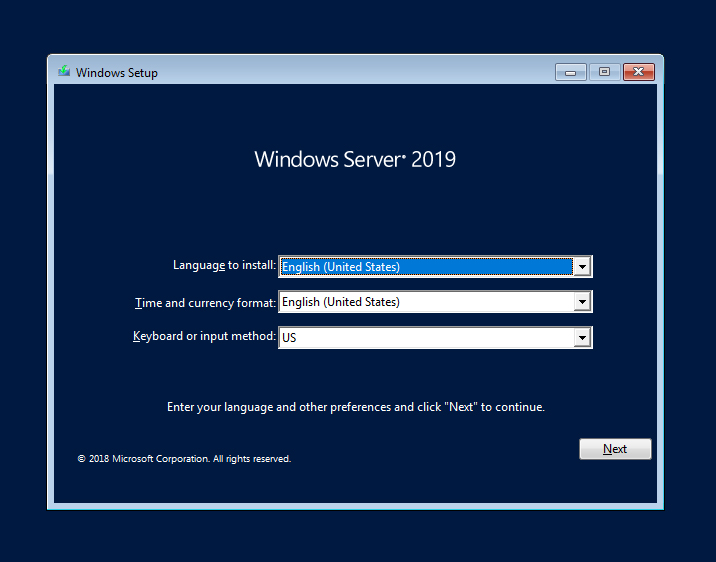
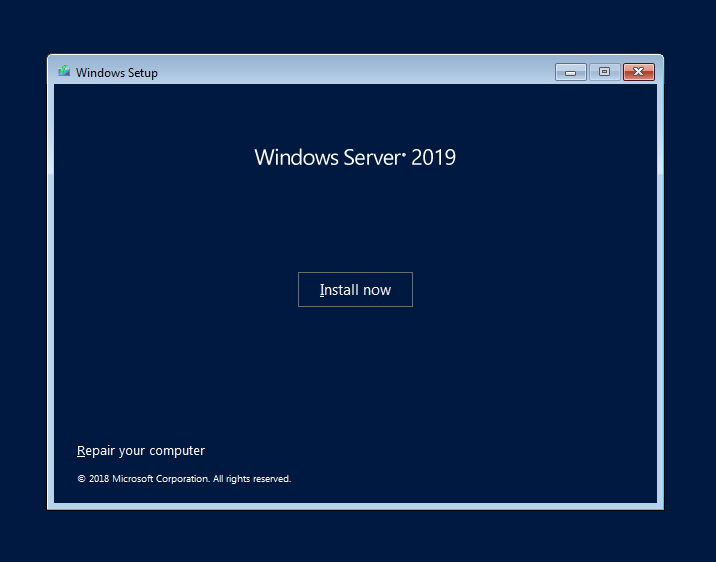
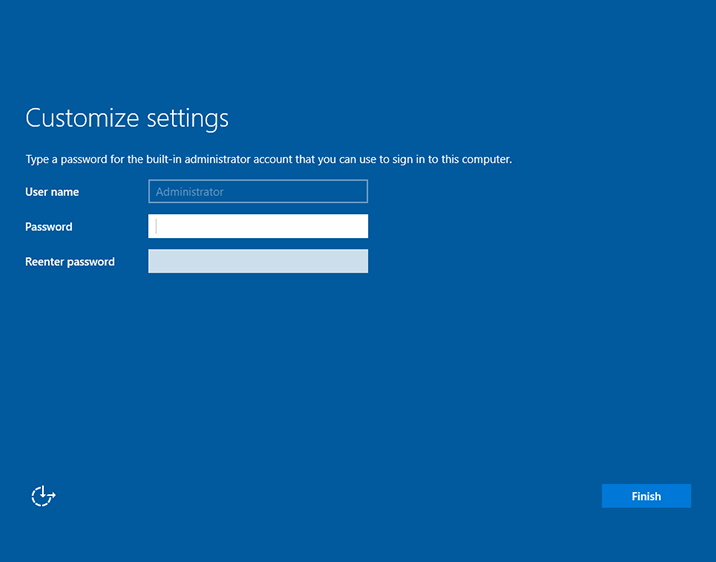
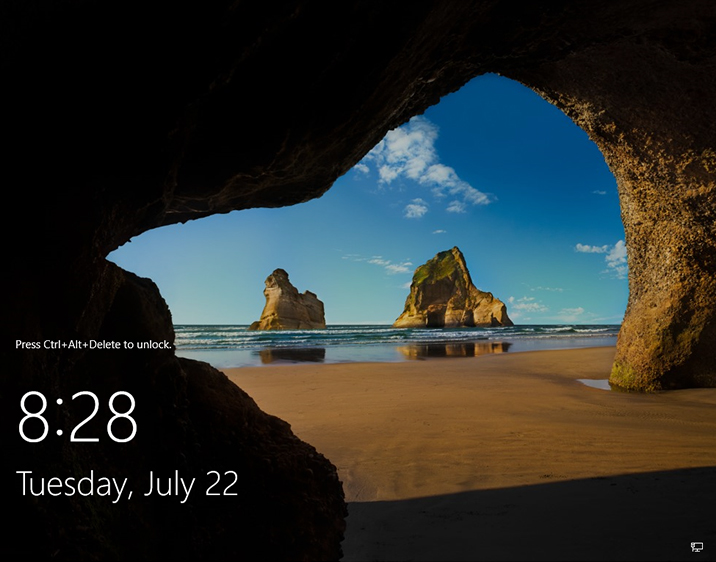
Follow the instructions in the slideshow below to install Windows Server 2019 (click the orange arrows to navigate):


III. Activate the server
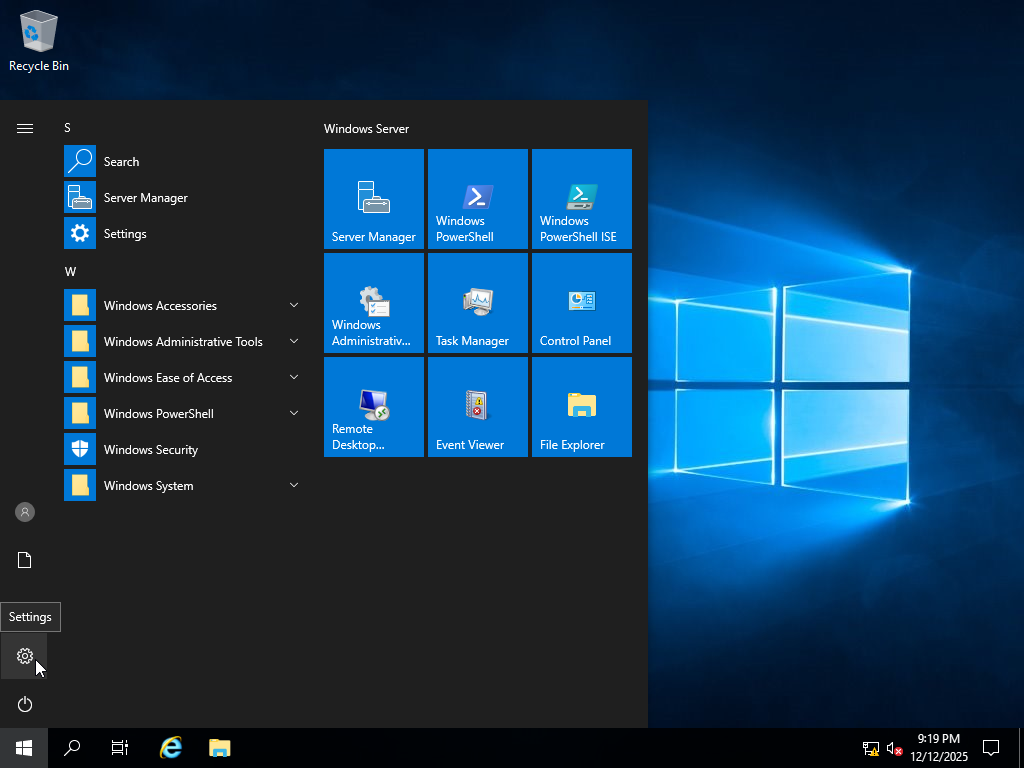
- Open the Start menu and click the Settings icon.
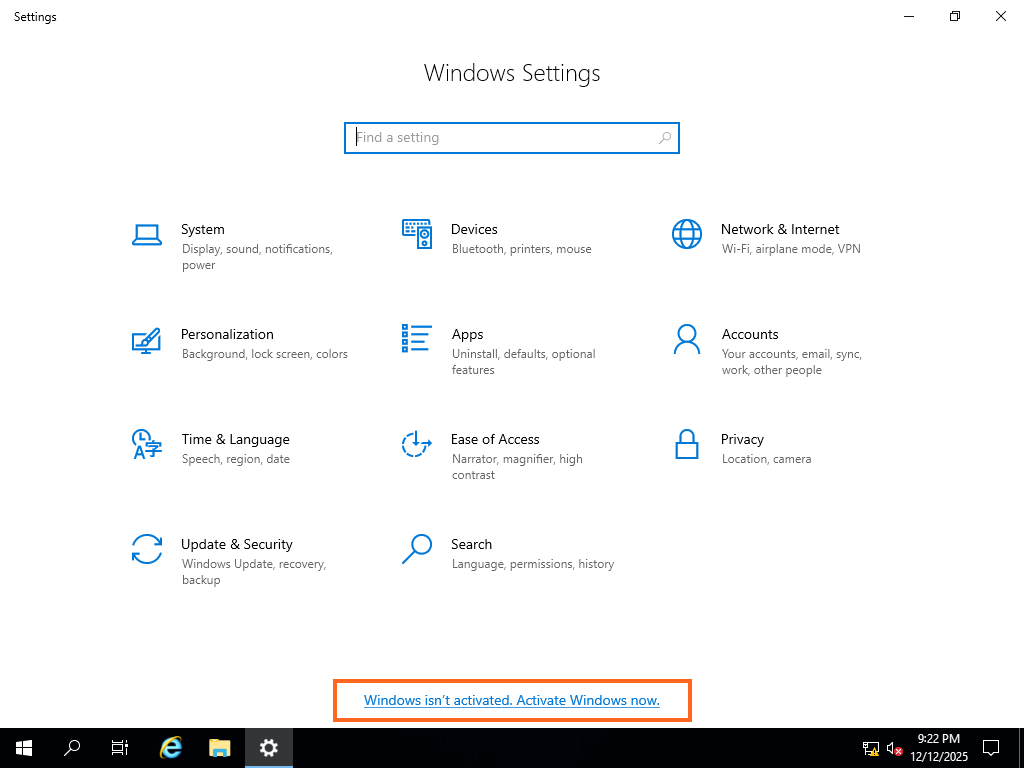
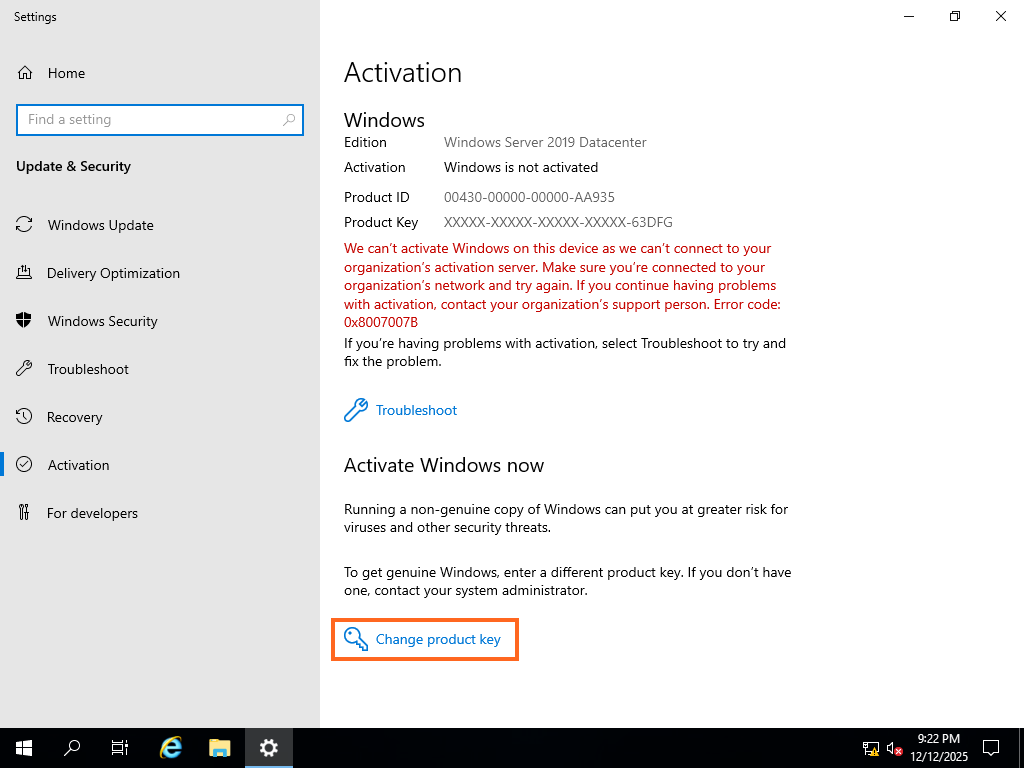
- At the bottom of the windows there should be a message saying Windows isn’t activated. Activate Windows now – click it.
- Click Change product key, enter the product key that you received with your order and click Next.
Your Windows Server will be activated and ready to use.