What is VAMT and how to configure it?
Overview of the Volume Activation Management Tool (VAMT) – a free Microsoft tool for automating and managing volume activations.
The Volume Activation Management Tool (VAMT) is a free activation management solution from Microsoft. It enables network administrators and IT professionals to automate and manage the activation of Microsoft products, including Windows, Microsoft Office, and more.
With VAMT, IT specialists can handle volume activation using Multiple Activation Keys (MAKs), Windows Key Management Service (KMS), or Active Directory-based activation methods.
If your company is planning to deploy and activate multiple computers with Windows 11, we recommend using VAMT to streamline and speed up the process. Below you’ll find links to the most important aspects of the tool, along with step-by-step guidance for deployment across your company’s network.
Introduction to VAMT
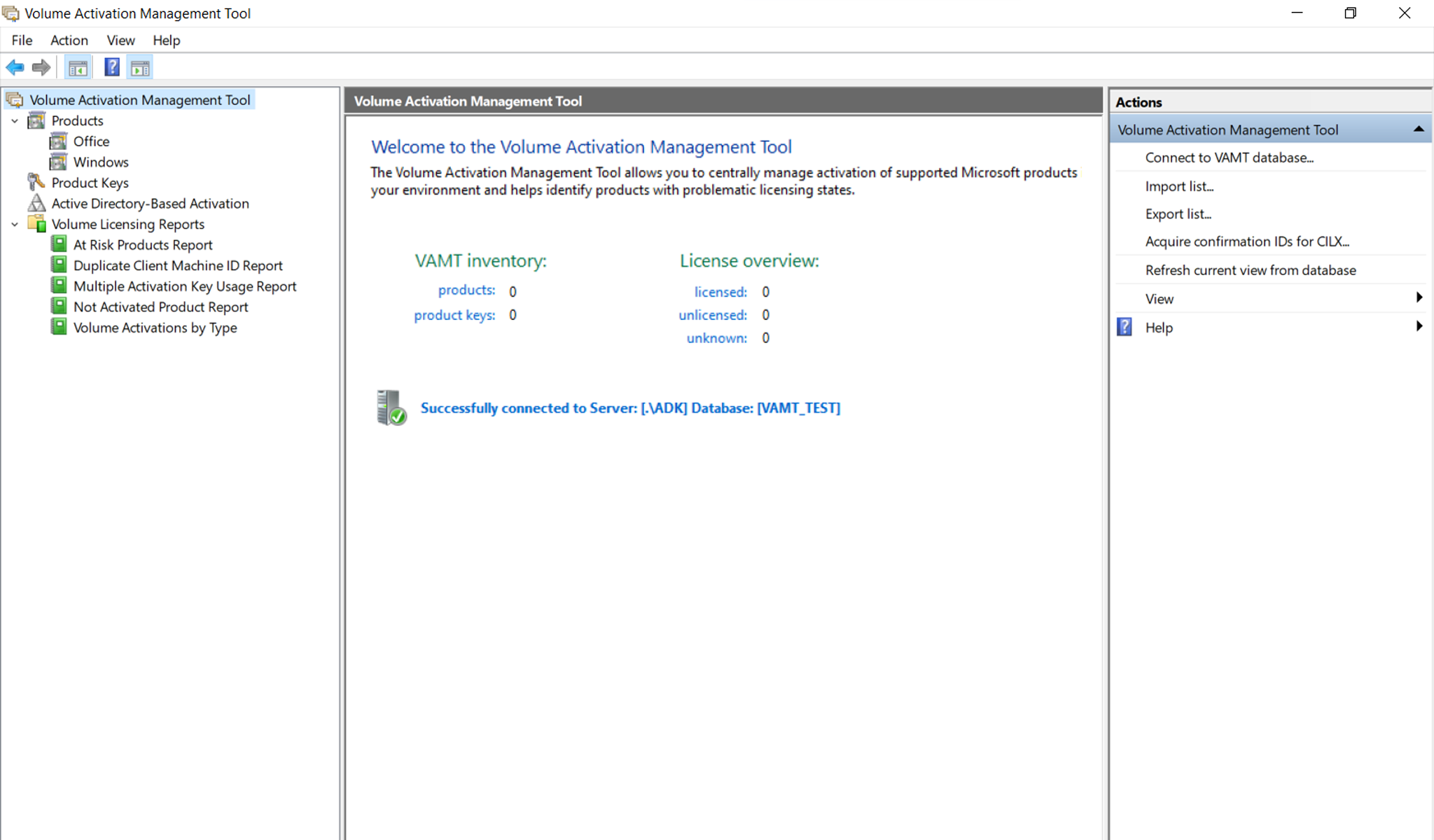
In the link below you can find an overview of the basic features and functionality of VAMT. In the left column of the same page, you will also find a complete list of tools and processes available with VAMT.
Introduction to VAMT | Microsoft Learn
VAMT configuration steps
1. Install VAMT
VAMT is included as part of the Windows Assessment and Deployment Kit (ADK) for Windows. It can be deployed on either Windows Server or a Windows client OS.
Install VAMT | Microsoft Learn
2. Configure client computers
To ensure the Volume Activation Management Tool functions correctly, configuration changes must be applied on all client computers. Make sure the required firewall exceptions are added.
Configure client computers | Microsoft Learn
3. Add computers
Once the environment is properly set up and configured, you can begin adding client computers that will be activated through VAMT. Use the Discover products function to do this.
Add computers | Microsoft Learn
4. Add a product key
Next, add a product key for the software you would like to activate (Windows 11 Pro, for example). This key (and its activation) will then be distributed across the selected devices.
Add and remove a product key | Microsoft Learn
5. Run online activation
Finally, launch the activation process by following the instructions in the guide below.