Windows 11 – upgrade Home to Pro
This guide shows you how to perform an in-place upgrade from Windows 11 Home to Windows 11 Pro.
Step-by-step guide
Back up your data.
Disconnect the computer from the Internet – this step is very important. The upgrade needs to be performed in offline mode.
Go to: Settings → System → Activation.
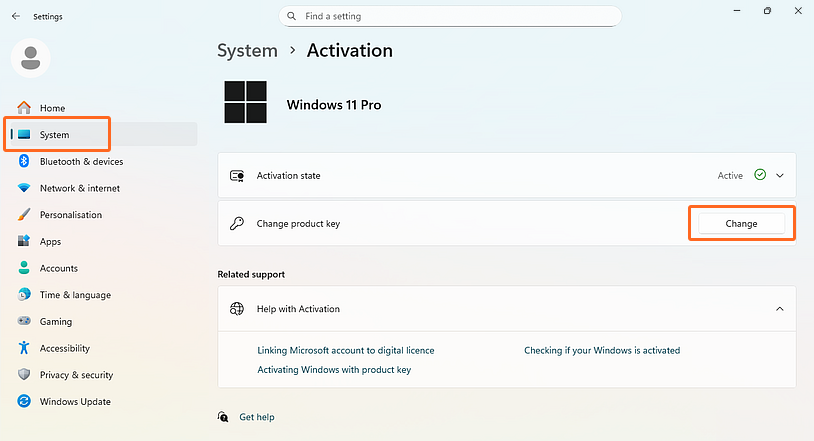
Click the Change button in the Change product key field and enter the following Generic Volume License Key (GVLK) for Windows 11 Pro:
VK7JG-NPHTM-C97JM-9MPGT-3V66TThe system will allow you to upgrade. Click Next and continue with the process.
Once everything is complete, connect the computer to the internet and install all available updates (Settings → Windows Update).
When latest updates are installed, go to Activation again and enter your product key for Windows 11 Pro to activate the system.