SQL Server – how to upgrade Express/Developer/Evaluation to Standard or Enterprise
Step-by-step guide for upgrading SQL Server Express, Developer or Evaluation to Standard or Enterprise edition.
This guide shows you how to upgrade the edition of your SQL Server from Express, Developer, or Evaluation to Standard or Enterprise. It’s applicable for versions 2022 and 2025.
Before you begin:
This process does not require reinstalling SQL Server or the operating system. The upgrade is performed using the SQL Server Installation Center, and your databases and settings are preserved, however we highly recommend to back up all databases and critical configuration files.
Make sure you don’t have a clustered instance of SQL Server 2022/2025.
Notify users of expected downtime, as SQL Server services will restart during the upgrade.
Step-by-step guide
I. Obtain SQL Server Standard / Enterprise installation media (ISO)
Go to oneslm.eu/login and use your order credentials (email and order number) to log in.
Download the available file.
II. Perform the upgrade
Run setup.exe from the Standard or Enterprise edition installation media.
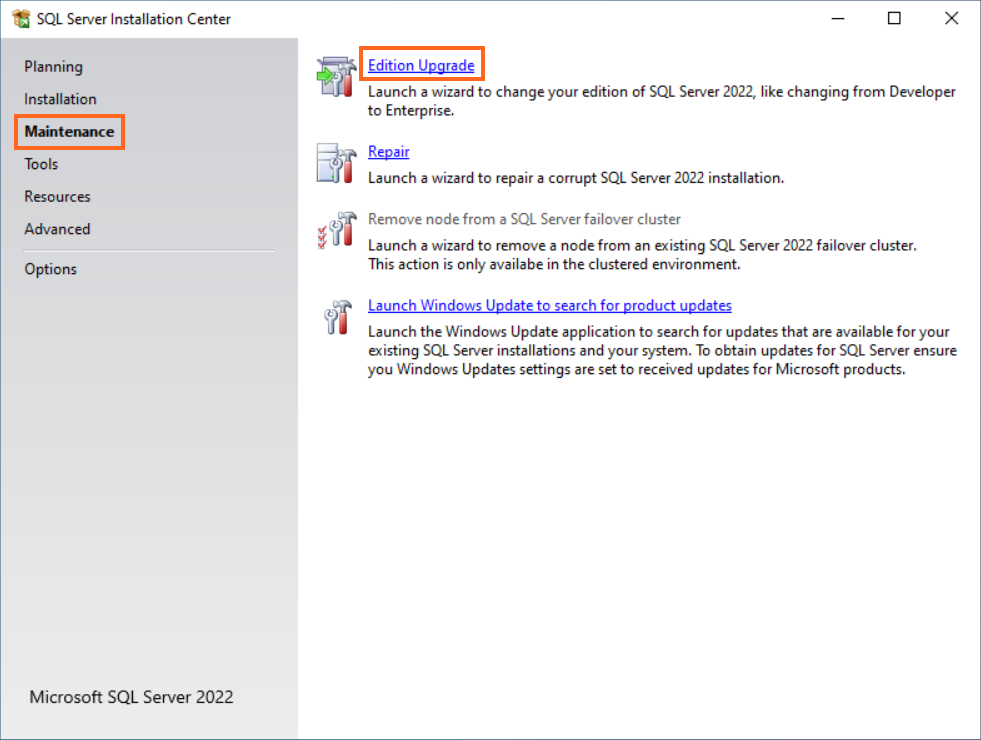
In the SQL Server Installation Center, choose Maintenance → Edition Upgrade.
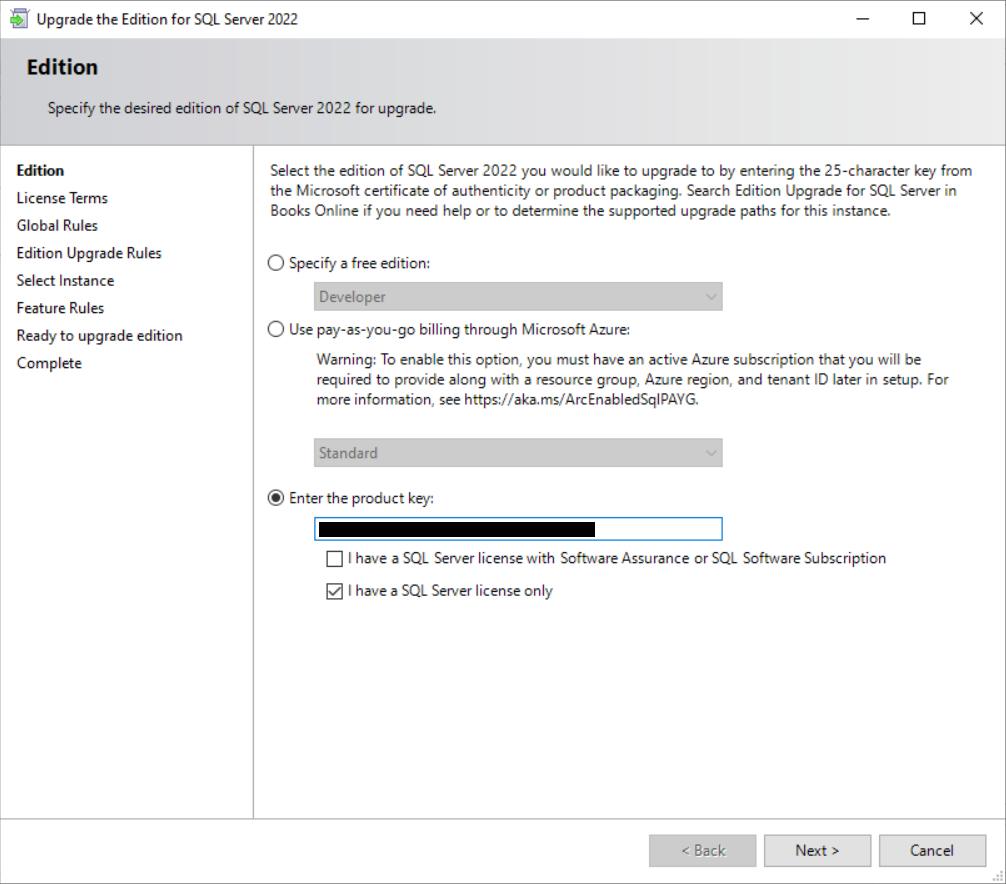
Select option "Enter the product key" – the product key will be automatically filled in (embedded), or you can enter it manually, if it's not. Tick box "I have a SQL Server License only".
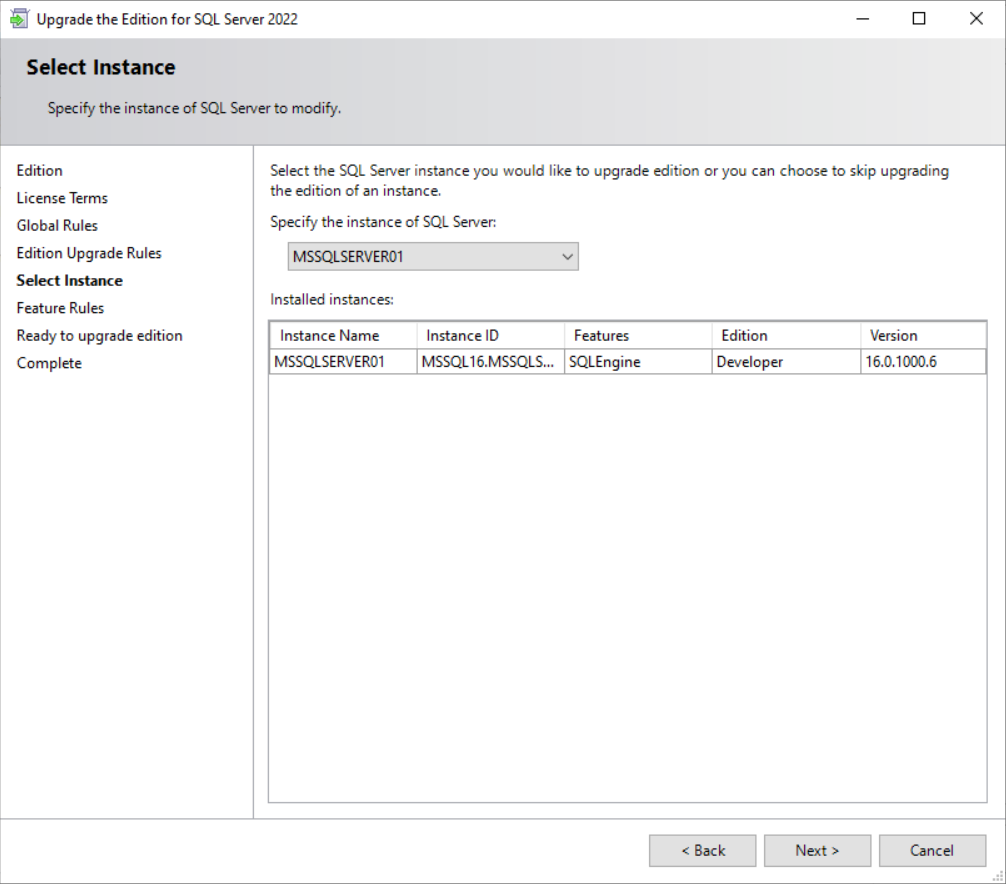
Select the SQL Server instance to upgrade.
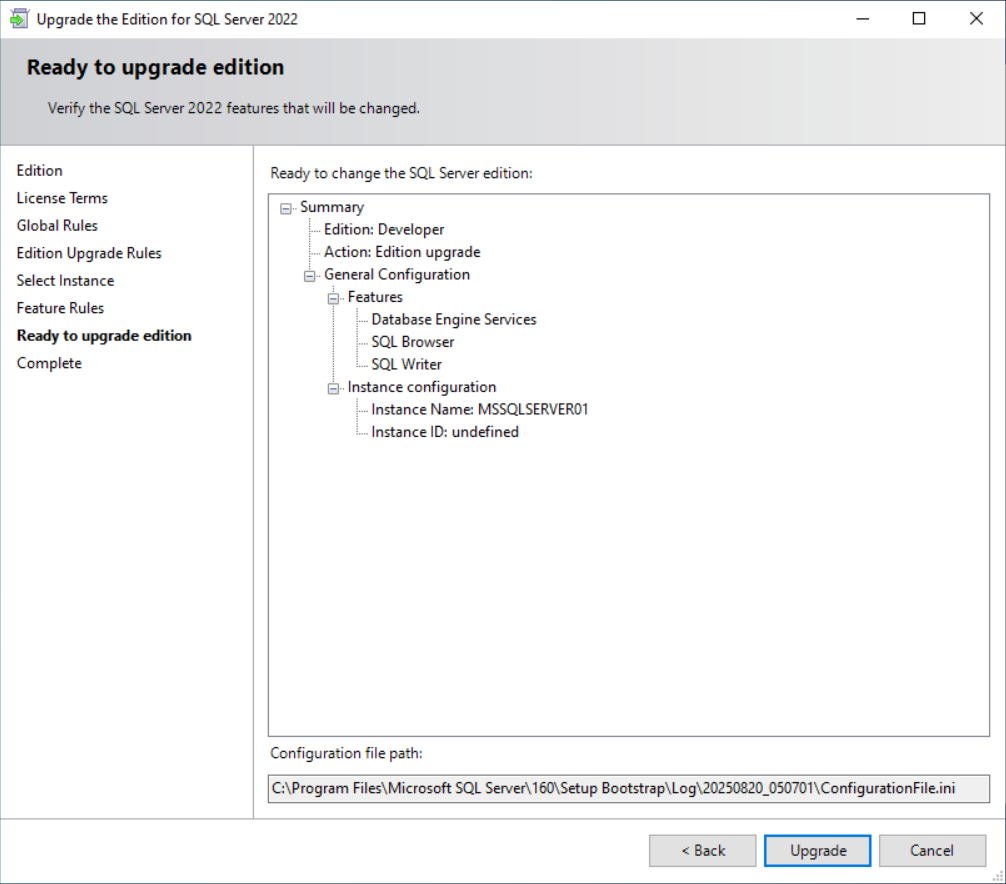
Follow the prompts until you reach the summary of changes that will be executed – once you verify the listed options are correct, click "Upgrade".
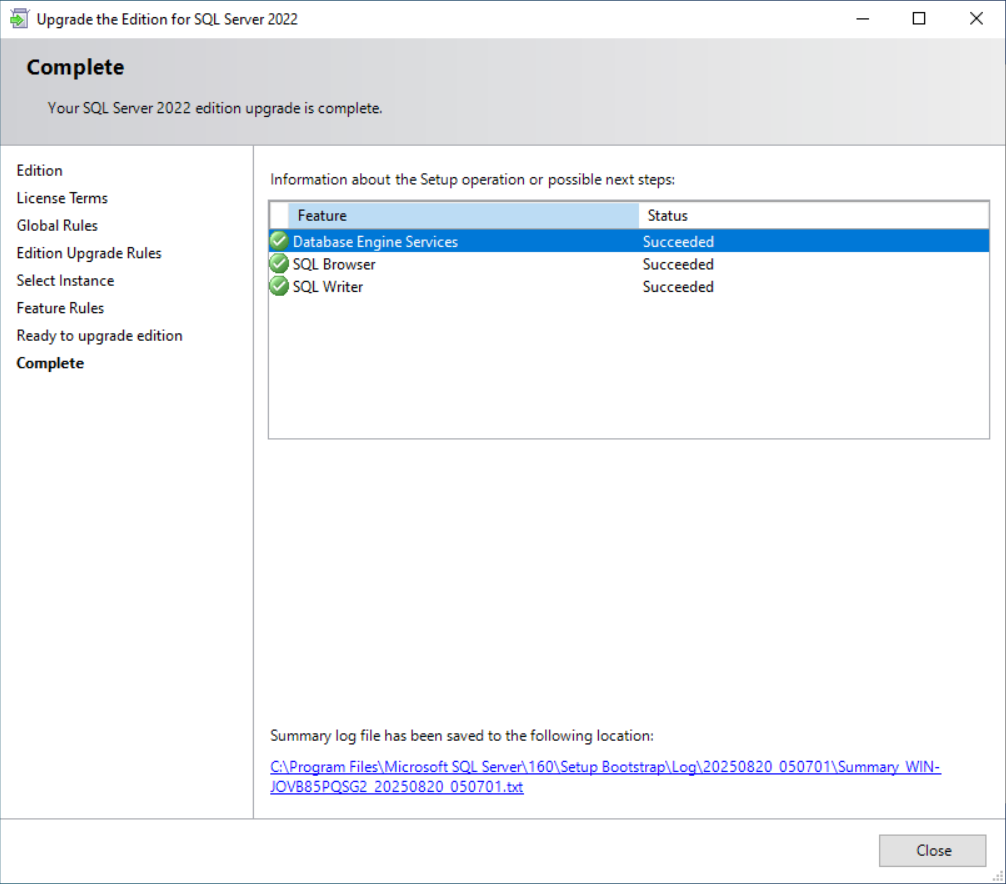
When the upgrade is successful, you'll get a window similar to this one:
III. Post-upgrade advice
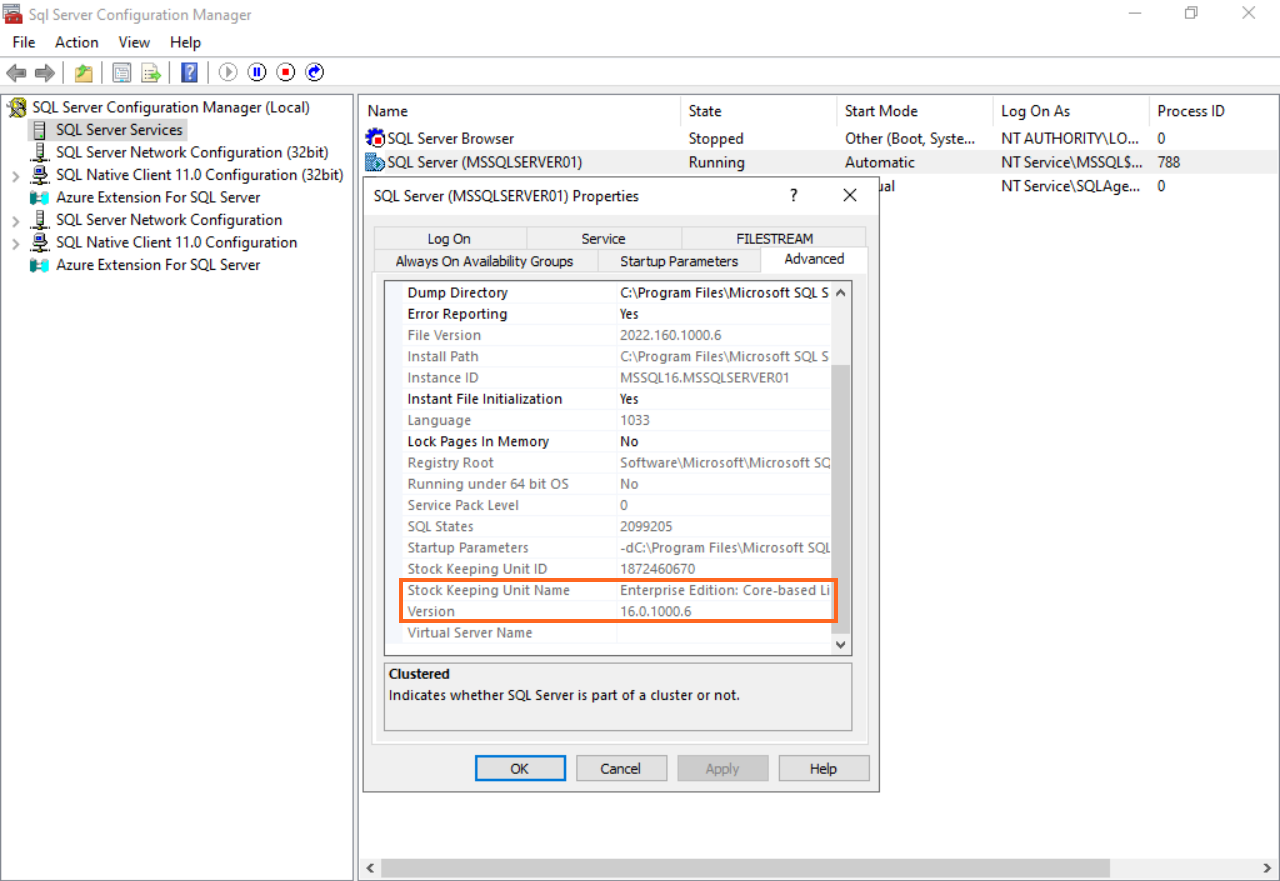
Verify the edition in SQL Server Configuration Manager:
Go to SQL Server Services;
Right-click the server instance you want to check and select "Properties";
Go to tab "Advanced" and scroll down to the bottom of the list where you can find the unit name and version.
Test applications and services to ensure everything works as expected.