How to uninstall Windows product keys
Step-by-step guide for uninstalling Windows product keys.
Step-by-step guide
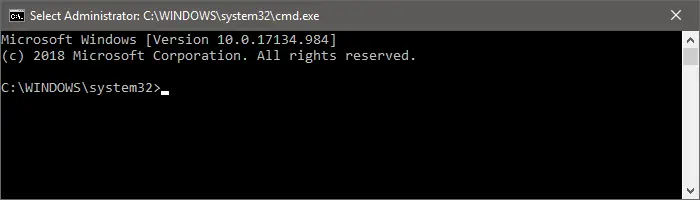
1. Open Command Prompt as administrator
2. Check license status
Type the following command:
slmgr.vbs /dliA small window will pop up, showing the current license status of your operating system.
If Windows is activated, the result will be similar to this image:
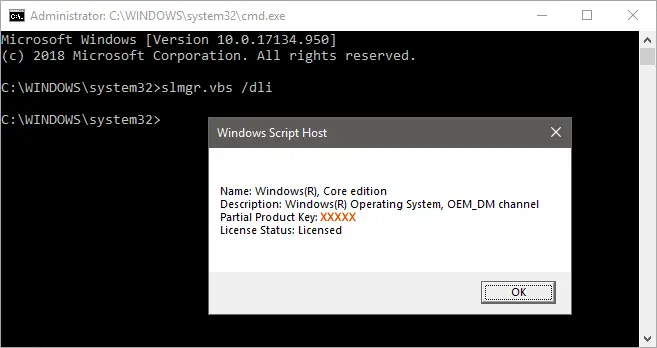
Note: Throughout the article we use orange Xs on top of the original characters in the examples for security reasons.
If the Windows is not activated, the result will be similar to this image:
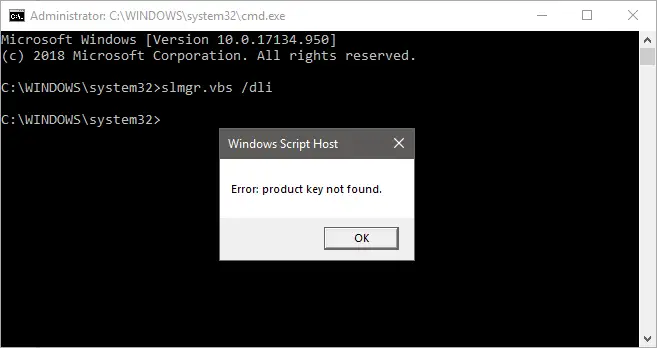
In this case you don’t have to do anything else.
3. Uninstall the product key
Type the following command:
slmgr.vbs /upkYou should receive the following pop-up:
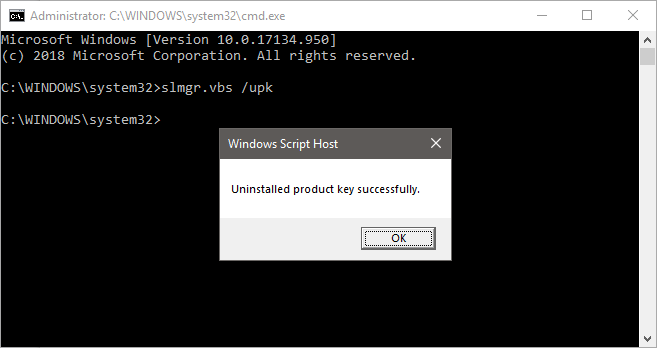
After this the operating system will be in an unlicensed state (deactivated) unless a new product key is installed.
4. Clear the registry
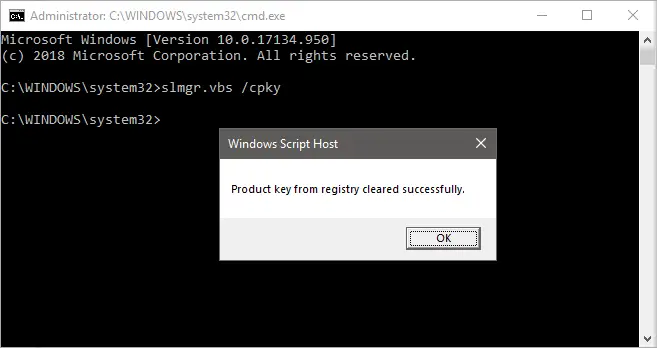
After removing the key, continue with the following command:
slmgr.vbs /cpkyThe pop-up will contain the following message:
5. Reset trial period
This step is optional – it gives you additional 30 days to activate the currently deactivated Windows OS with a genuine product key.
To reset the trial period countdown, enter with the following command:
slmgr.vbs /rearmThe pop-up will contain the following message:
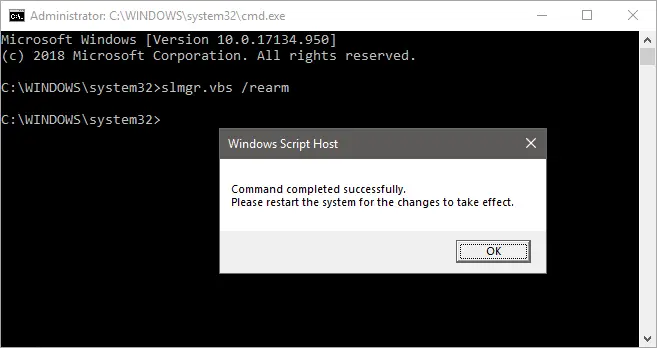
Restart the device in order to apply the trial period anew.