How to uninstall Office product keys
Step-by-step guide for uninstalling Office product keys.
Step-by-step guide
1. Open Command Prompt as administrator
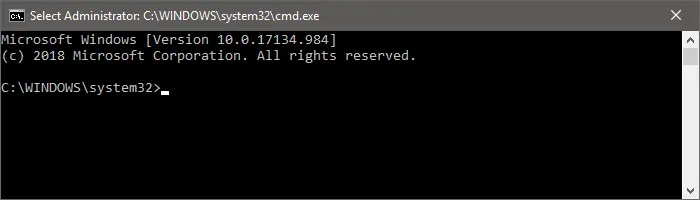
2. Navigate to the proper folder
Change the current folder to where the Office licensing software is located. The command is not the same for all Office versions – copy the one that matches your Windows and Office architecture:
Office 2010
For 32-bit Windows + 32-bit Office or 64-bit Windows + 64-bit Office, use:
cd C:\Program Files\Microsoft Office\Office14For 64-bit Windows + 32-bit Office, use:
cd C:\Program Files (x86)\Microsoft Office\Office14Office 2013
For 32-bit Windows + 32-bit Office or 64-bit Windows + 64-bit Office, use:
cd C:\Program Files\Microsoft Office\Office15For 64-bit Windows + 32-bit Office, use:
cd C:\Program Files (x86)\Microsoft Office\Office15Office 2016 / 2019 / 2021 / 2024
For 32-bit Windows + 32-bit Office or 64-bit Windows + 64-bit Office, use:
cd C:\Program Files\Microsoft Office\Office16For 64-bit Windows + 32-bit Office, use:
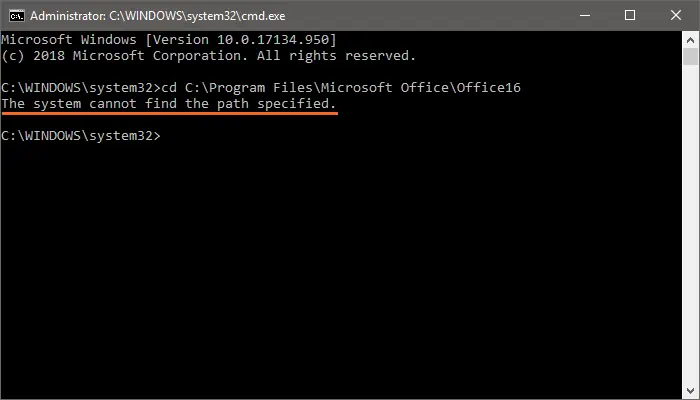
cd C:\Program Files (x86)\Microsoft Office\Office16Tip: If you’re not sure which command you need to use, just try them until you stop getting the message “The system cannot find the path specified.”
Incorrect command entered = the system cannot find the path specified
3. Check license status
Type the following command:
cscript ospp.vbs /dstatusIf Office is activated, the result will be similar to this image:
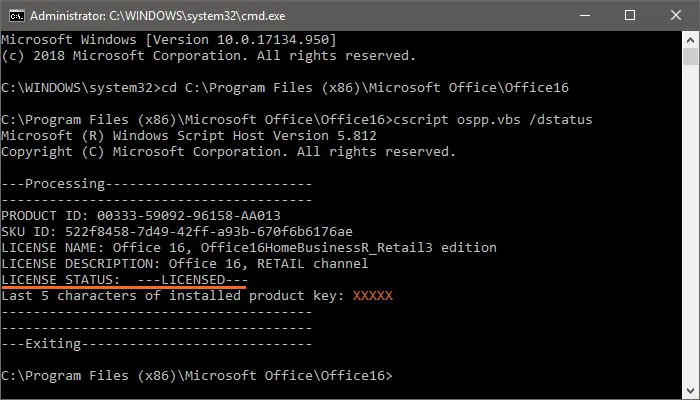
Note: Throughout the article we use orange Xs on top of the original characters in the examples for security reasons.
If Office is not activated (in trial period), the result will be similar to this image:
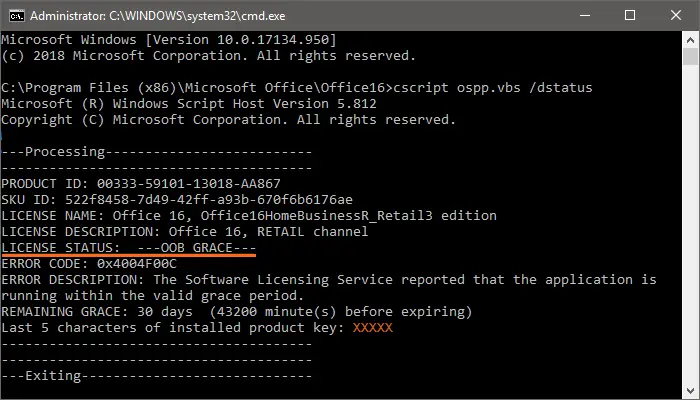
In this case you don’t have to do anything else.
4. Uninstall the product key
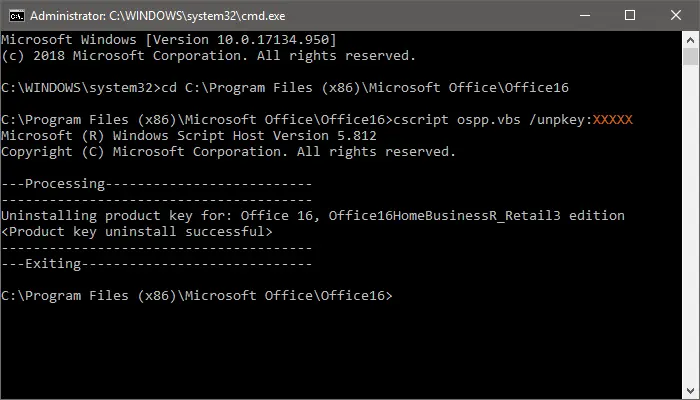
Type the following command:
cscript ospp.vbs /unpkey:XXXXXIn place of XXXXX you need to enter the last 5 characters of the product key that you want to uninstall – you have them in the result of the status command in the previous step
5. Verify the uninstallaton
Use the status command again to make sure the process is finished:
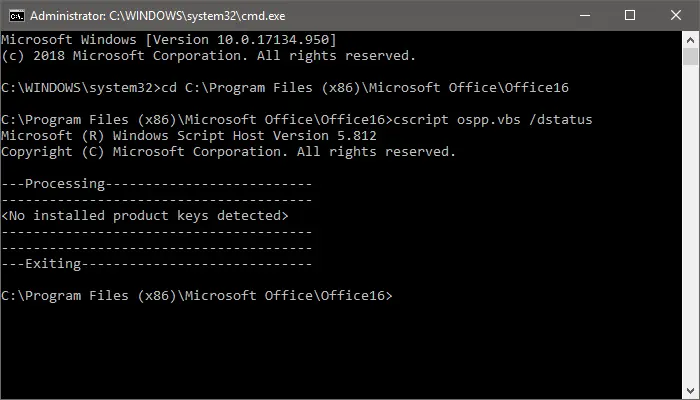
cscript ospp.vbs /dstatusIf you get the following result, your Office is now deactivated: