Office 2019 – installation and activation
Step-by-step guide for installing and activating Office 2019 Standard and Office 2019 Professional Plus.
Before installing your software, please make sure that:
your computer meets the Office 2019 system requirements: Windows 10 or higher; Windows Server 2019 or higher; hard disk space: 4 GB; RAM: 2 GB for 32-bit, 4 GB for 64-bit;
your current operating system is up to date with the latest Windows Updates;
the following Offices are not installed on your computer (if they are, uninstall them): Office Home and Student, Office Home and Business, Office Professional, Microsoft 365 desktop apps, My Office.
Step-by-step guide
I. Installation
Go to oneslm.eu/login and login with your email and order number.
Download and run our application Office 2019 Volume Installer.exe.
You may see the following warning:
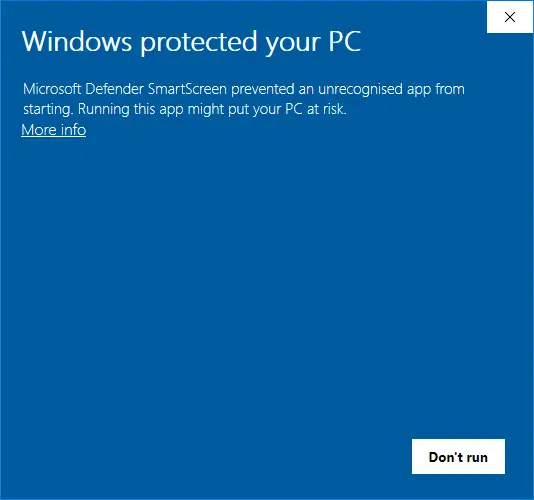
This message occurs because the app is brand new and it hasn’t gained trusted status in Windows’ safety systems yet. Click on More info and choose Run anyway.
When the Office 2019 Volume Installer opens, it looks like this:
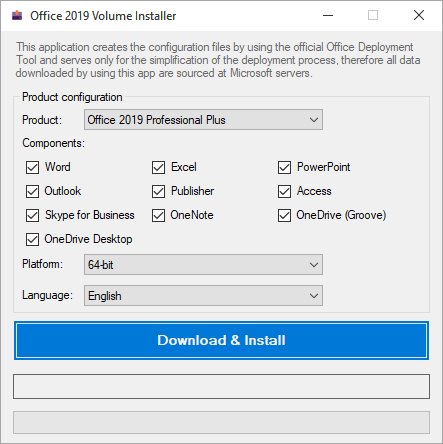
From the Product drop-down list, select the product you purchased from us.
In the Components field, you can untick the Office applications that you don’t plan to use.
From the Platform drop-down list, select the type of architecture for your product: 32-bit or 64-bit.
How to check your system architecture?
Open Settings and go to System → About. The System type row will contain that information.
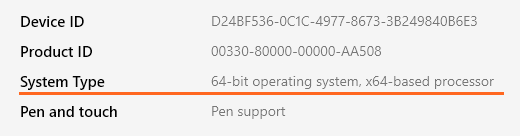
Typically it’s best to select 64-bit – this way your product will perform better on modern operating systems and devices.
From the Language drop-down list, choose which language you would like your product to be in.
Once you’re done customizing the installation, click Download & Install.
Now just wait for your product to be installed. The green progress bar in the Installer will fill up several times and some additional windows will appear – this is normal and it’s part of the process.
Do not close the Installer and its additional windows or the installation will be interrupted!
Office is completely installed when you see this window:
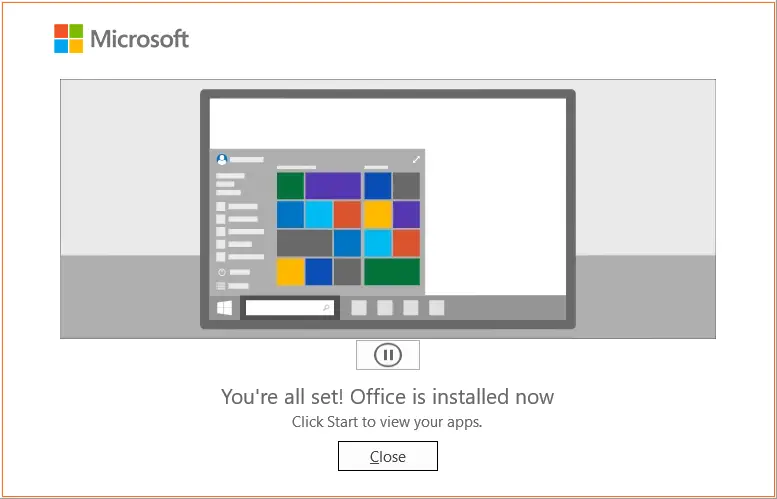
You can now close the Installer and proceed with activating your product.
II. Activation
Once the installation of Office 2019 is done, you need to activate your product to finalize the process.
Run any Office 2019 app, for example Word.
Open a blank document.
Go to menu File → Account and click Change Product Key in the yellow field (located just below the app icons).
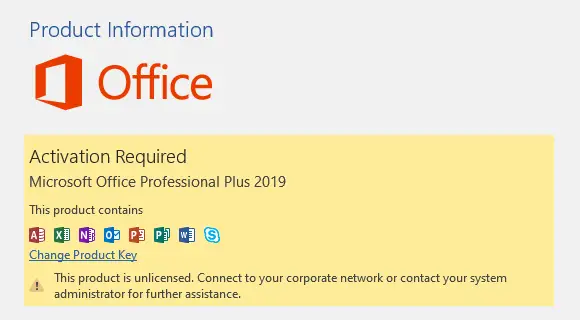
Enter your product key in the pop-up window and a moment later the Activate Office button will appear – click it and your product will be activated and ready to use.