How to install or move RDS CALs with the Microsoft Remote Desktop Self-Service activation platform
Step-by-step guide for managing RDS CALs via the Microsoft Remote Desktop Self-Service activation platform.
Remote Desktop Services uses a licensing system that lets Microsoft customers obtain and manage RDS Client Access Licenses (RDS CALs) for users or devices connecting to an RD Session Host. Each user or device connecting to a Windows Server-based RDS environment needs the appropriate RDS CAL.
Before you start
Prepare your License server ID.
Prepare RD Host configured per User or per Device. For reference: Domain vs Workgroup: which RDS CALs do you need?
Have the licensing information at hand, such as the agreement or enrollment number, depending on the purchase program. Example of what it might look like:

Select what you want to do:
First-time activation of RDS licenses
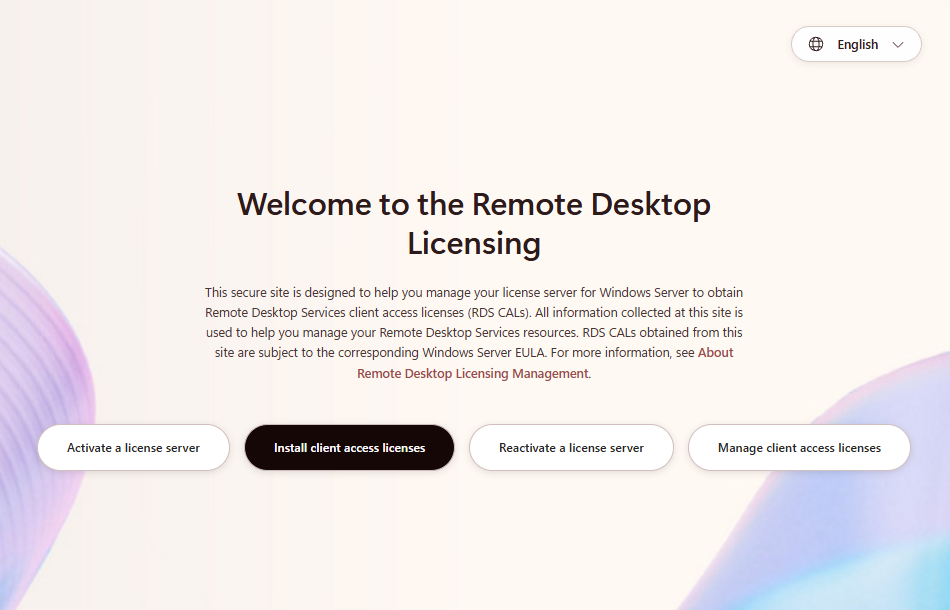
Select Install client access licenses.
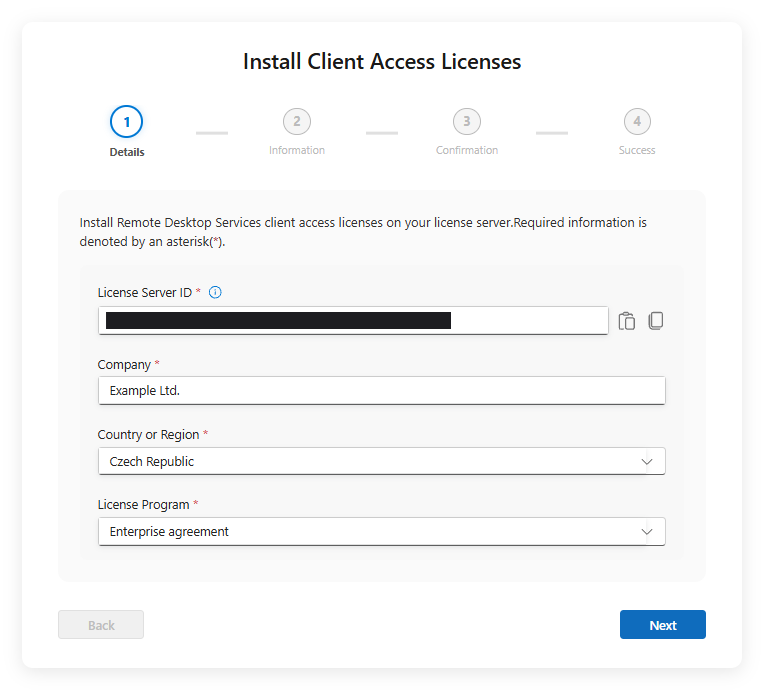
Fill in the fields with:
License Server ID;
Company name;
Country;
License program.
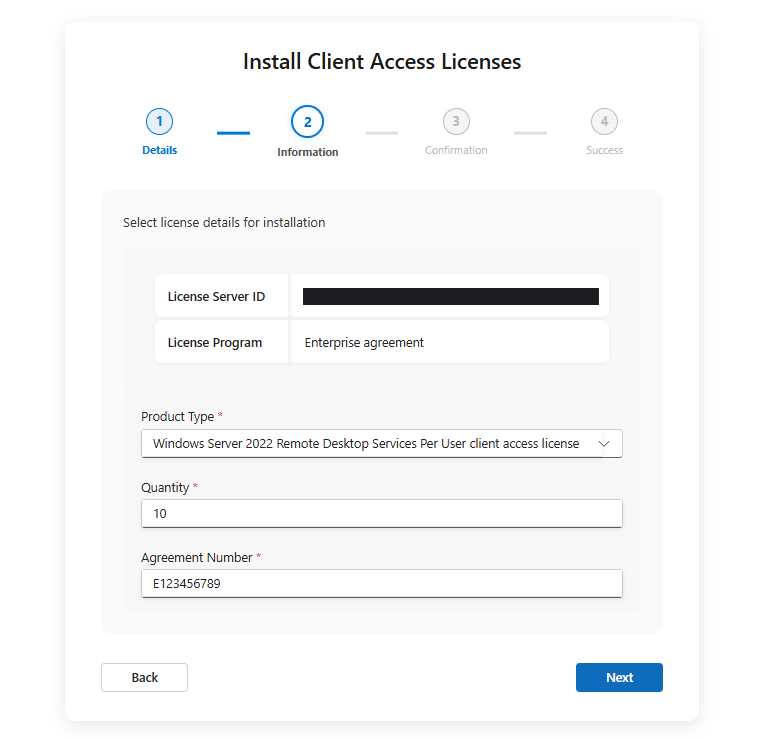
Next, choose your product type based on your currently installed Windows Server release and RD Host configuration.
Enter the quantity of licenses you want to activate; it should not exceed the quantity you purchased.
Enter the agreement number.
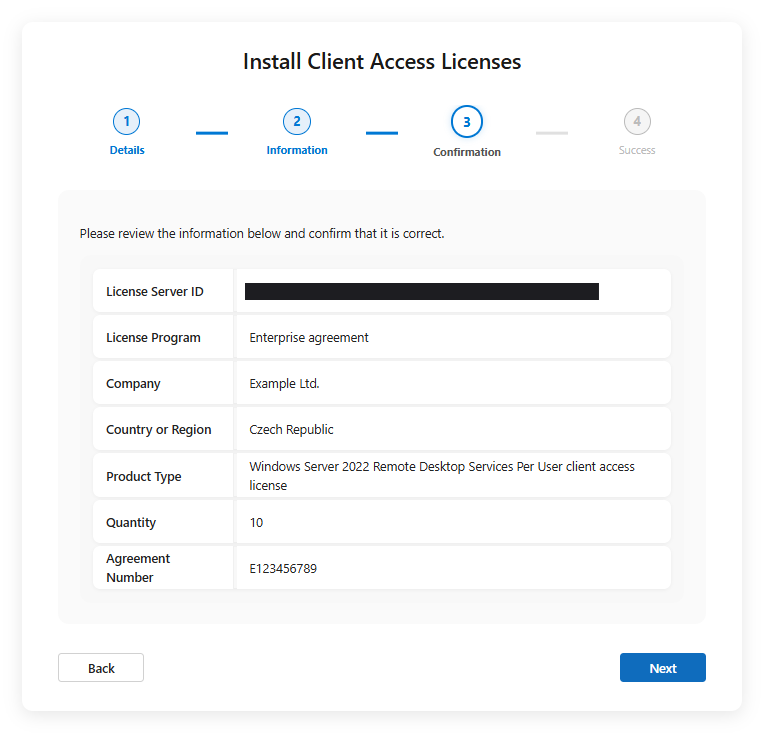
The next page will be a summary of the inputs from the previous steps – once you make sure it's correct, click "Next".
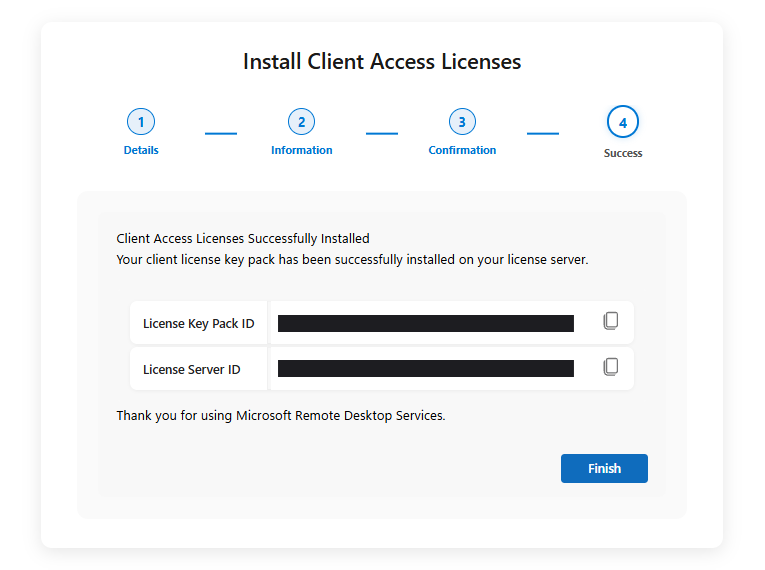
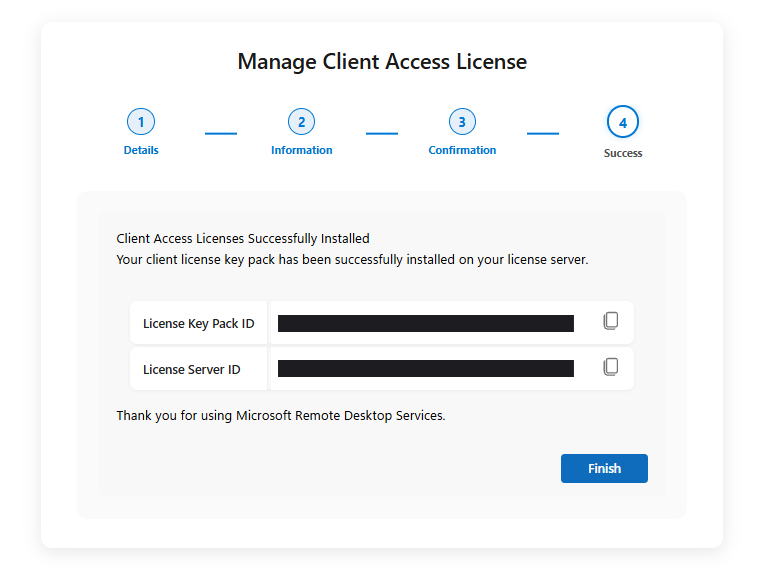
The License key pack was generated – this is your RDS CAL. Copy the two fields (License Key Pack ID and License Server ID) to a text file and click "Finish". Afterwards you can continue with installing the RDS CALs on the server.
Need instructions on how to install the RDS CALs on the server? Find them here:
How to install RDS CALs (video)
Moving licenses to a new server
Select Manage client access licenses.

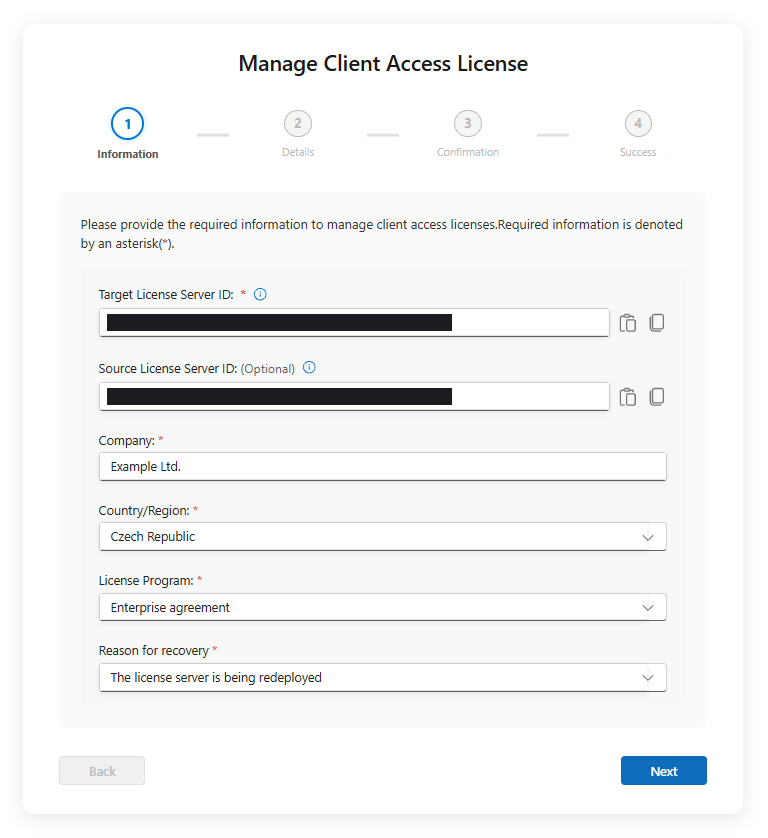
Fill in the fields with:
Target License Server ID – this is the server to which you want to move the licenses;
Company name;
Country;
License program;
Reason for moving the licenses.
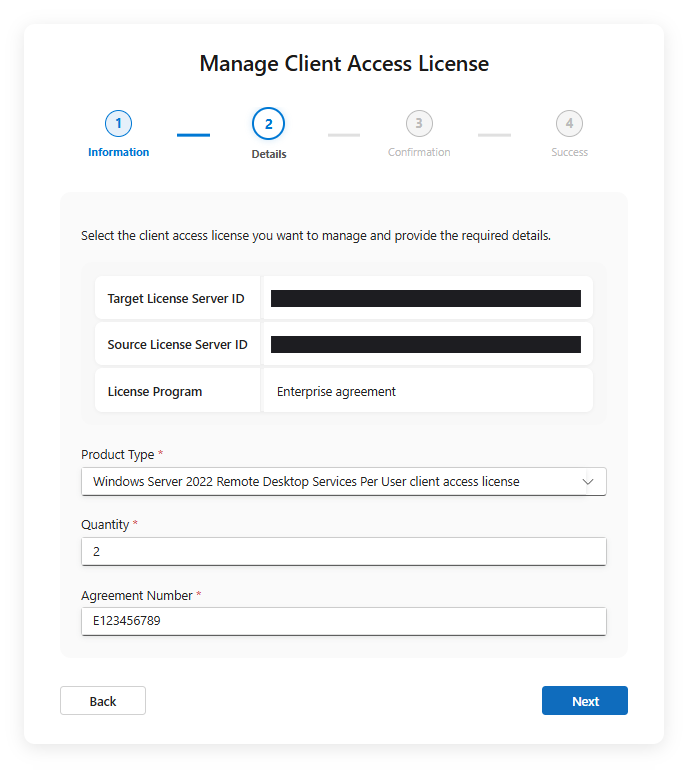
Select the RDS license type, based on the currently installed Windows Server release and RD Host configuration of the target server.
Enter the quantity of licenses you want to move.
Enter the agreement number.
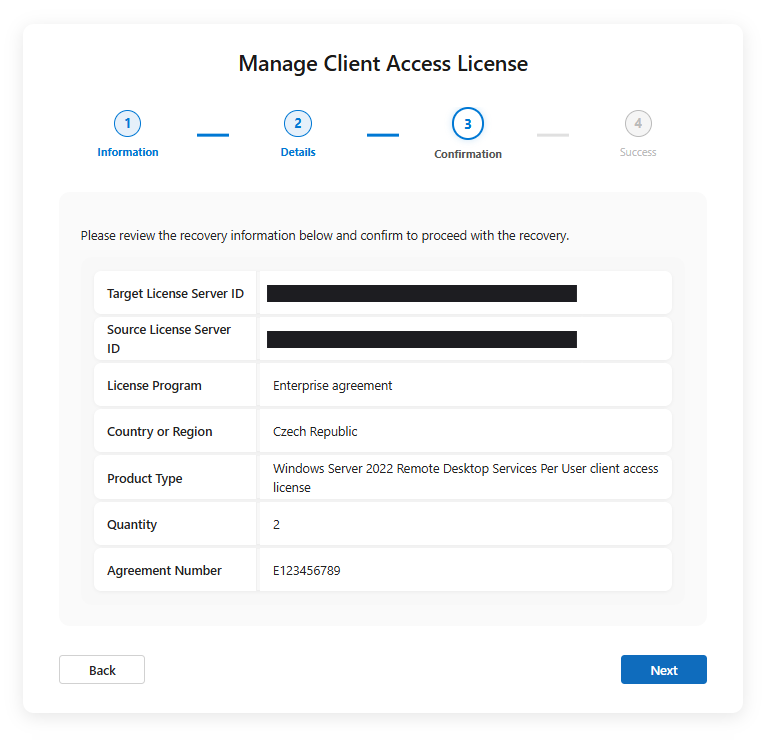
The next page will be a summary of the inputs from the previous steps – once you make sure it's correct, click "Next".
The License key pack was generated – this is your RDS CAL. Copy the two fields (License Key Pack ID and License Server ID) to a text file and click "Finish". Afterwards you can continue with installing the RDS CALs on the server.
Need instructions on how to install the RDS CALs on the server? Find them here:
How to install RDS CALs (video)