How to activate Autodesk applications offline
Step-by-step guide for activating Autodesk SLM products offline.
Since July 1st, 2022 it is not possible to activate newly installed Autodesk 2018-2021 products online (in other words, by putting the serial number and the product key into the activation window). However, it is still possible to activate any Autodesk product by performing offline activation (valid for versions 2018 and newer).
Step-by-step guide
1. Generate a request code with the product activation wizard
Run the Autodesk software you want to activate.
Click the “Activate” button on the Autodesk licensing screen.
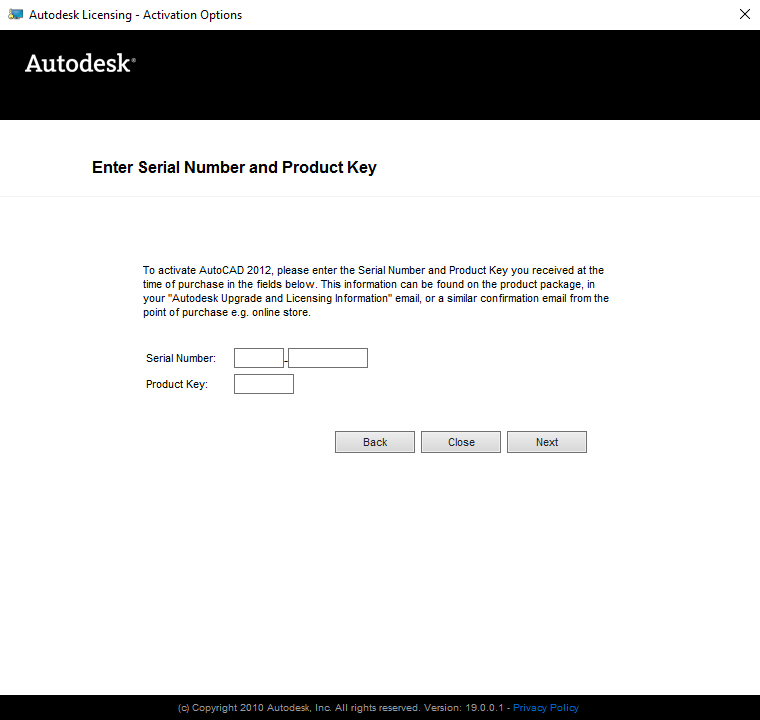
Enter your serial number and product key, and click “Next”.
Select “Request an activation code using an offline method” option and click “Next”.
Your Request code should be visible under the Product Key as a group of 8 x 4 characters.
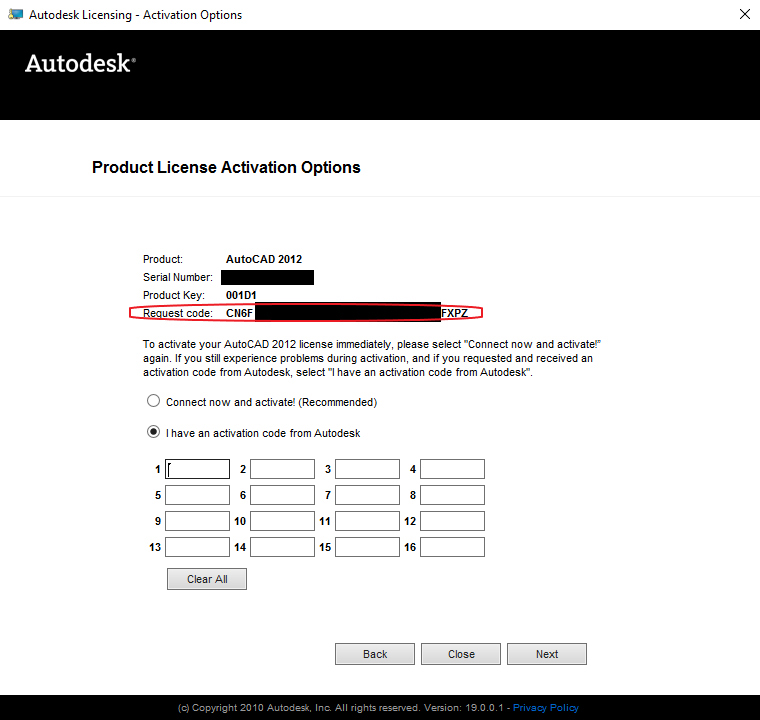
Copy the request code but don’t close the wizard. Proceed to the next part of the guide.
2. Contact Autodesk support chat, get an activation code and finish the activation
Log in to your Autodesk account, and go to https://www.autodesk.com/support/contact-support in order to contact a support agent.
Choose “Downloading and installing software” → “Something else”.
Select your product (AutoCAD, Inventor, etc.) and describe your request in short (see example in the box below), then choose “See options”.
I would like to request activation of the perpetual-licensed AutoCAD 2018 product I've purchased. Please provide an activation code.
Insist to the chat bot that the case needs to be escalated to a human agent.
Once you're connected to a human agent, describe your request again – you want to obtain an activation code for your product. You will be prompted for your serial number and the request code you got from the Autodesk program’s licensing screen.
In exchange, the agent should send you an activation for the respective software version.
Note: Autodesk agents may inform you they no longer provide any activation support for perpetual Autodesk products. Do not let them get away with it! You have the right to demand the activation code to be provided to you.
Once your activation code is successfully generated, go back to the licensing screen of the Autodesk program, enter the activation code into the boxes, and click “Next”. Note that the activation code doesn’t necessarily fill all 16 boxes.
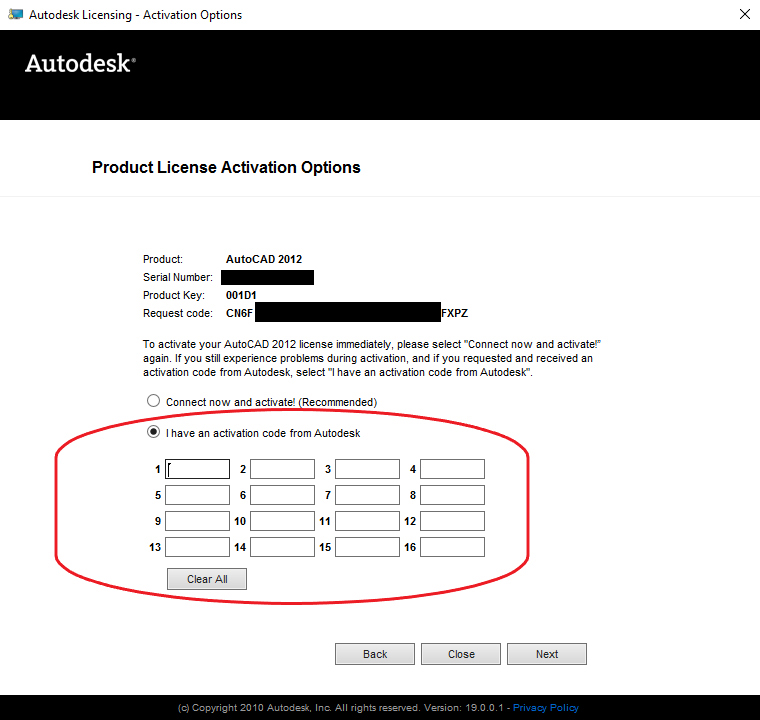
Your Autodesk product has been activated.