How to make use of Forscope Remote Help
Let us help you have your software ready to use in no time with the Forscope Remote Help connection.
Need a hand with installing or activating products you purchased from us? With Forscope Remote Help, we can connect to your device and troubleshoot the software for you. It’s fast, safe, and easy.
Step-by-step guide
I. Download Forscope Remote Help
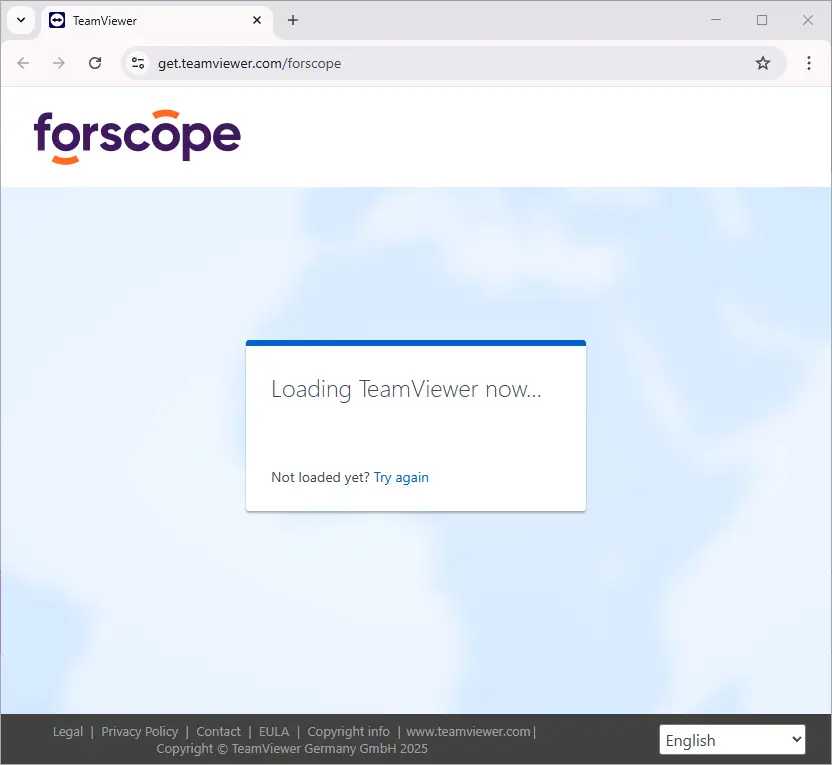
Click the button below to get the Forscope Remote Help app (a custom portable version of the TeamViewer app).
The page should look like in the picture below and the download should start immediately.
II. Set up the remote connection
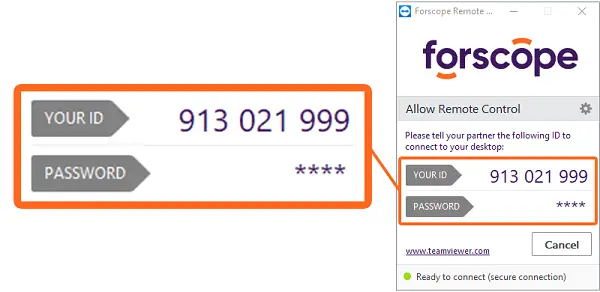
Open the TeamViewerQS.exe file. A small window will immediately appear.
To start the secure connection, you must share your ID number with our support team – you can do this via email.
The responsible person from our support team will connect to your device and start to troubleshoot the product. Your desktop wallpaper will turn black, and we will be seeing something similar to this:
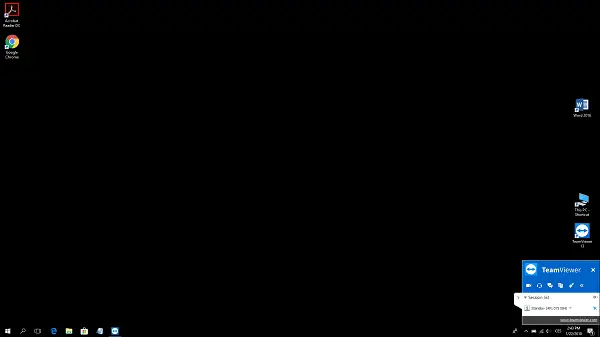
The responsible person will now proceed to provide a solution for the issue that you indicated before the session.
FAQ
What is Forscope Remote Help?
It’s a program that allows our highly skilled customer support to help you from afar by connecting directly to your device and troubleshooting issues you might have with the software you purchased from us. Every computer or laptop might have specific settings which can make it difficult to properly set up the products yourself. We use the safe and secure TeamViewer app to provide this service.
Why is it a great way to troubleshoot your product?
It’s fast and easy and it will let you to start using your product as soon as possible.
The only thing you need to do is to contact a representative from our customer care and run the TeamViewer app. The responsible person will explain everything and will take you throughout the whole process. Then you’ll just sit and watch them troubleshoot the product for you.
Our skilled support team can resolve issues with setting up your product in real time.
Is it safe?
The TeamViewer app that we use for the remote help connection implements the highest security standards, so your computer will be completely safe from start to finish.
The whole process is recorded which means that if you have concerns about any action that our representative took during the session, we can review the recording to see if everything was done correctly.
You can press the ESC key at any time to instantly interrupt the ongoing remote connection. This can come in handy if you have an incoming call, or need to leave your computer unattended for a while, for example.
Your desktop wallpaper will appear black, but if there are some files or running programs that you don’t wish us to see, just close them before the connection starts.
Need additional help? Contact us.