How to enable Windows 10 ESU (consumers only!)
This guide demonstrates how to enable Microsoft's free Extended Security Updates (ESU) for Windows 10.
IMPORTANT :
The free ESU plan is not available for businesses – it's meant for consumer users within the European Union only.
Before proceeding with the enrollment, please make sure you’re signed in to Windows with your personal Microsoft account.
Step-by-step guide
I. Update your system
Go to Settings → Windows Update.
Update your operating system with all available fixes and patches – the ESU enrollment will not succeed otherwise.
II. Enroll in ESU
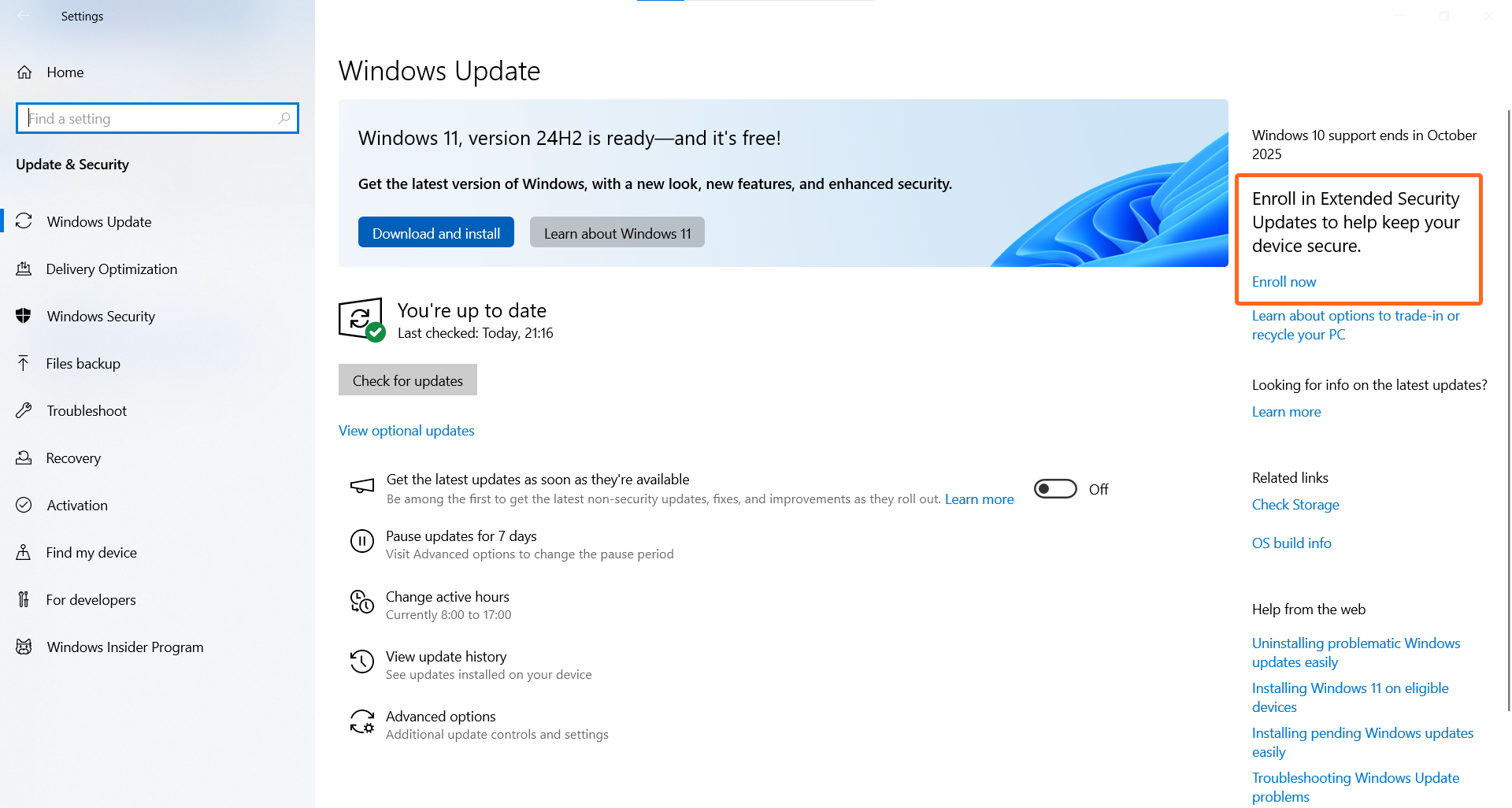
After ensuring your system is up to date, click the Enroll now under Enroll in Extended Security Updates, located in the upper right corner of the Windows Update window.
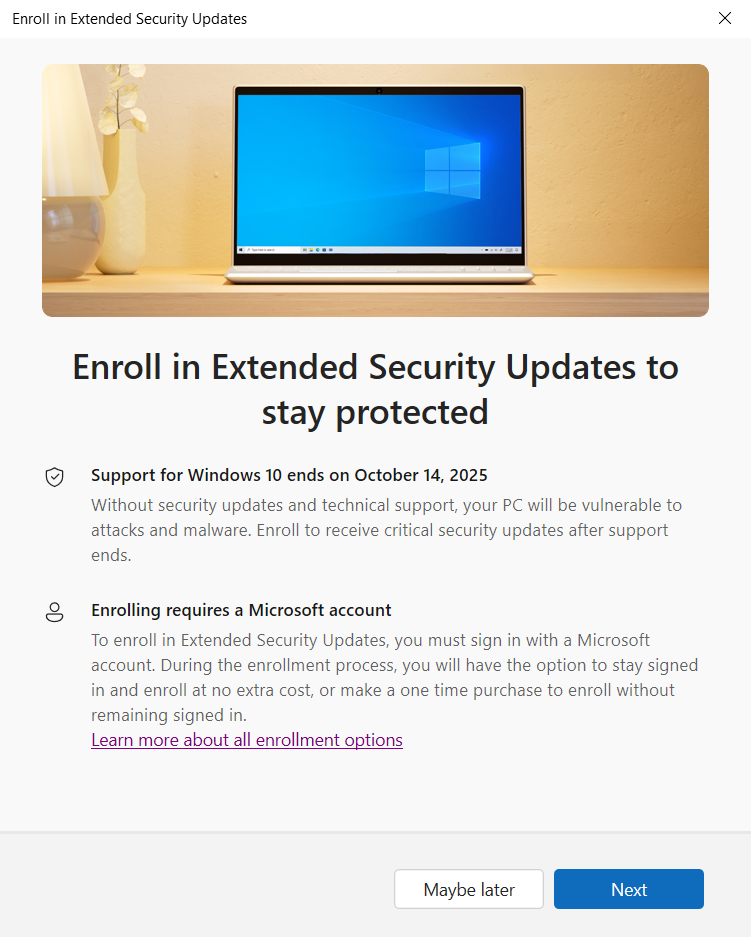
A new window will pop up – click Next to start the enrollment process.
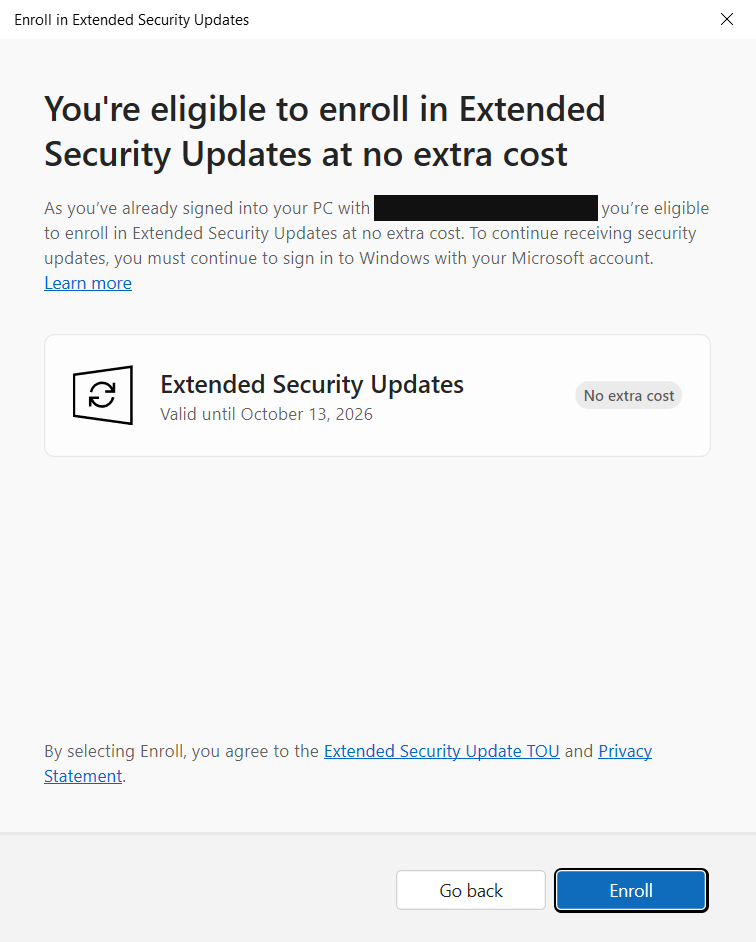
If you’re signed in to your personal Microsoft account on the device, you’ll have the option to enroll free of charge – otherwise, you’ll be prompted to make a purchase. Click Enroll to confirm the selected support plan.
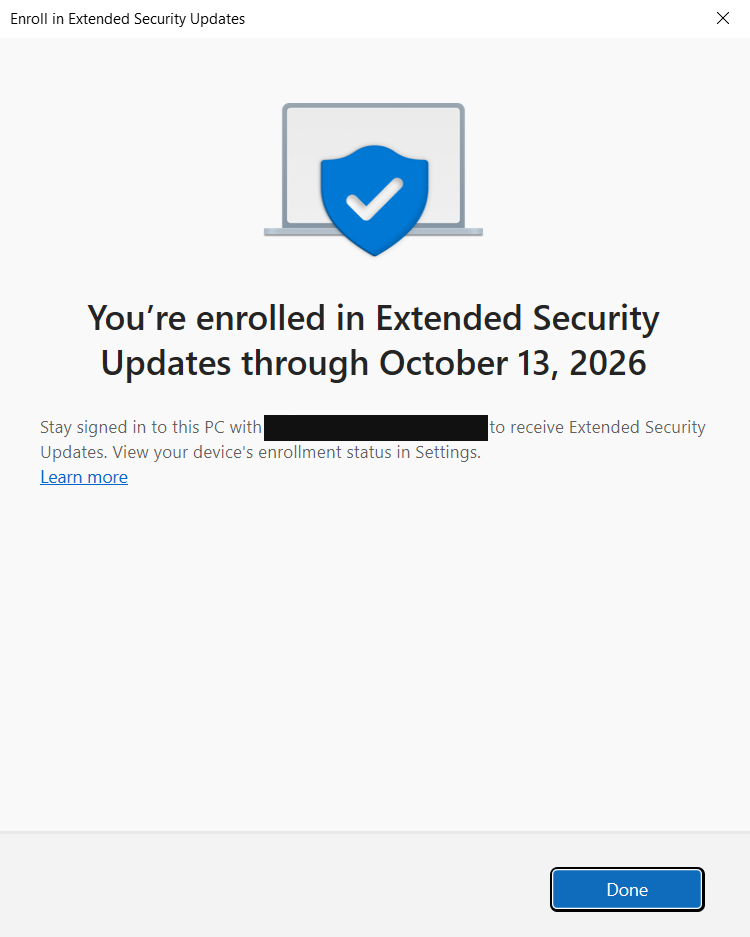
Once the enrollment is complete, click Done to close the activation window.
III. Check for successful enrollment
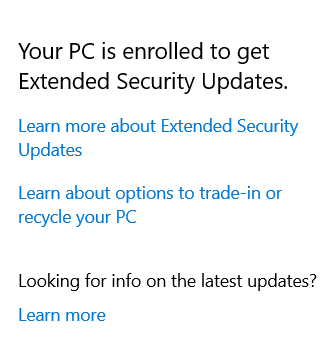
You can confirm the enrollment by going back to the Windows Update settings window and checking the upper right corner of the Windows Update – it will now say Your PC is enrolled to get Extended Security Updates.
FAQ
How many devices can one ESU license be used by?
Your ESU license can be used for up to 10 devices once you enroll in ESU.How long can I use the free Windows 10 ESU?
This plan ends on October 13, 2026.Where can I find more information about ESU?
For additional details, visit Windows 10 Extended Security Updates (ESU).