How to activate Office offline (via the Microsoft Product Activation Portal)
Step-by-step guide for activating Office products via the Microsoft Product Activation Portal.
IMPORTANT: A Microsoft account is required to use the service. The following steps will not assign any product or service to your Microsoft account and/or Admin Center.
Before proceeding with the activation, please make sure that:
your product key is valid for the version you're activating;
you have another device with internet on it by your side (e.g. your phone).
Step-by-step guide
I. Enter the product key
Open any Office application from the suite (e.g., Word or Excel).
Go to menu File → Account and click Change Product Key in the yellow field (located just below the app icons).
Enter your product key in the pop-up window and a moment later the "Continue" button will become active and will read "Install" – click it.
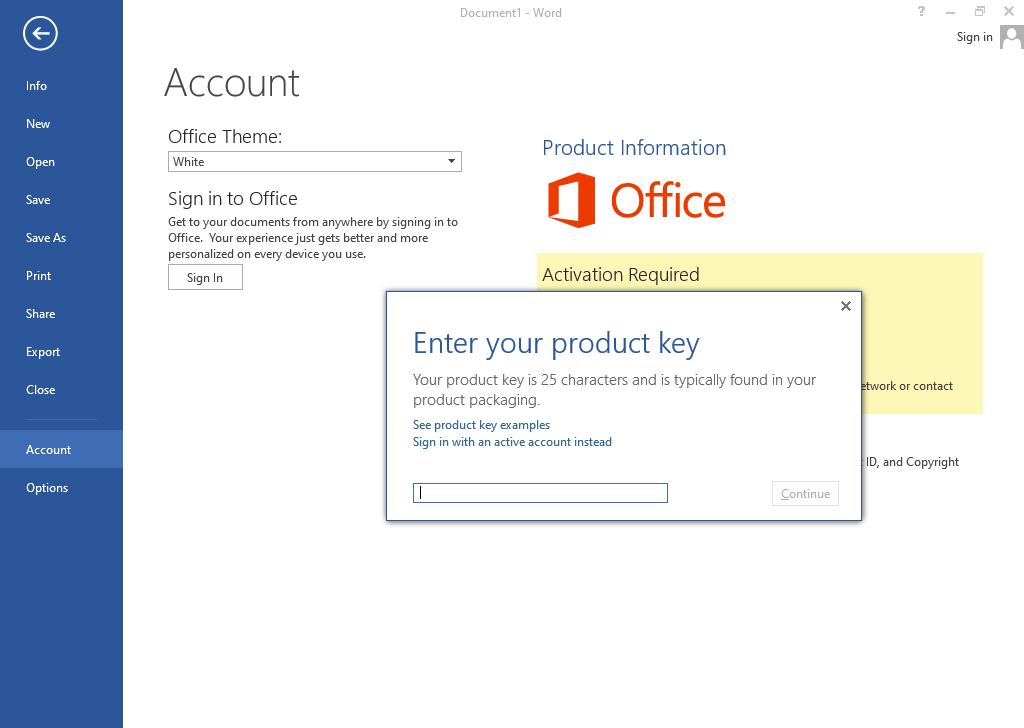
II. Obtain the Installation ID
Access the Activation Wizard:
If the software prompts you to activate, choose the option to activate via telephone.
If not, go to File → Account → Activate Product and select Activate by Telephone.
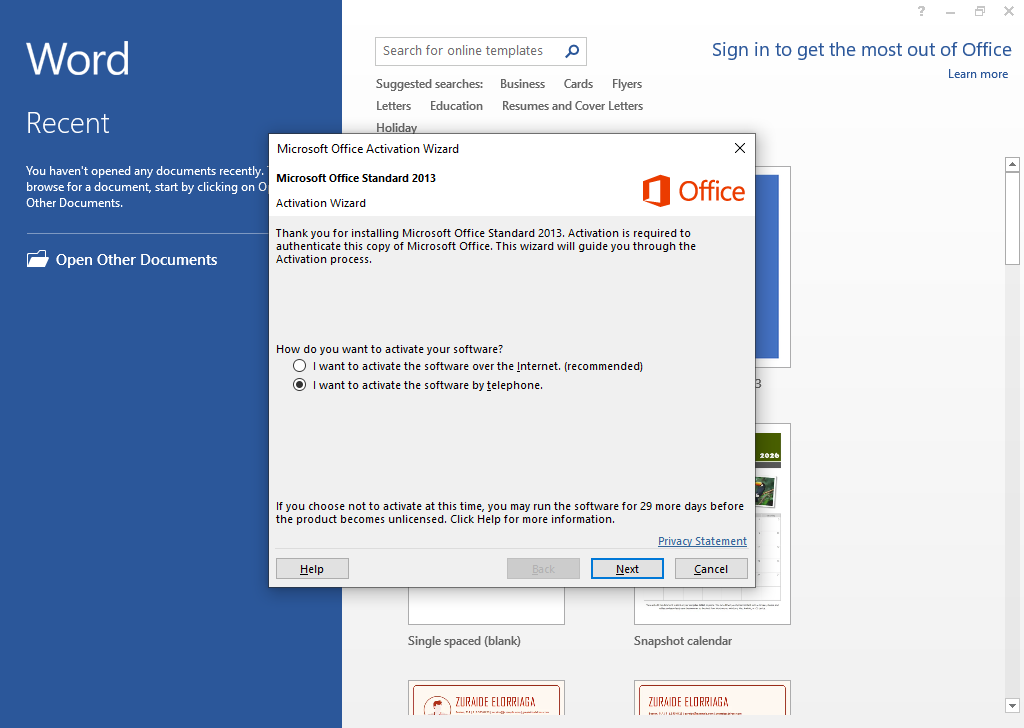
Select your country/region from the dropdown menu.
The wizard will display a long numeric Installation ID. Write this down or keep the window open.
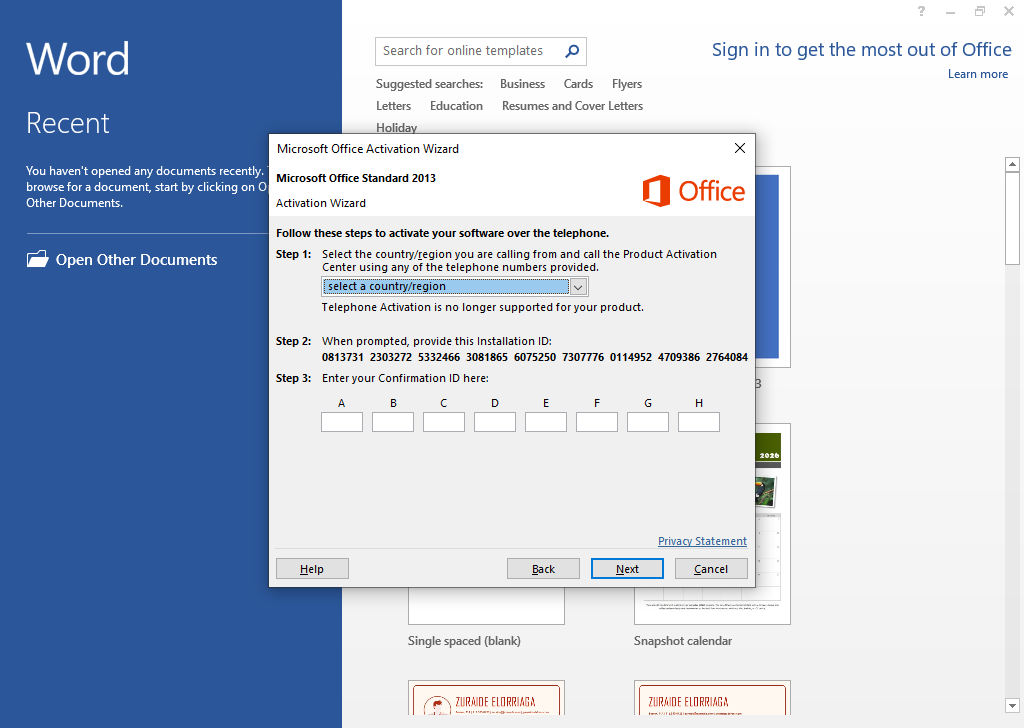
III. Use the Microsoft Product Activation Portal
On another device with an active internet connection (e.g. your phone), go to Microsoft Product Activation Portal: https://visualsupport.microsoft.com/.
Log in with your Microsoft account.
Select Activate a Microsoft Product.
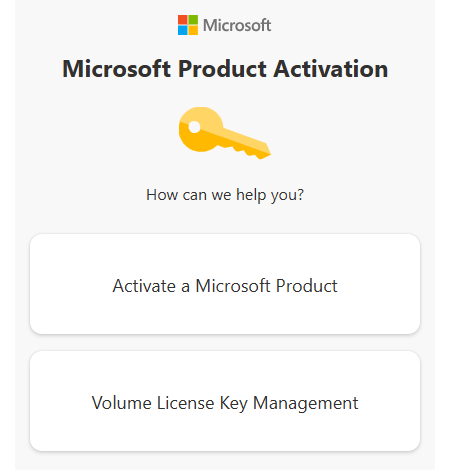
Choose Microsoft Office.
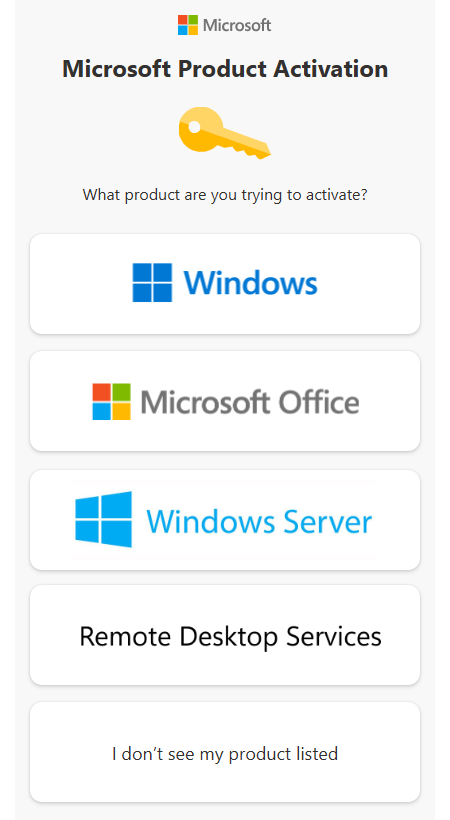
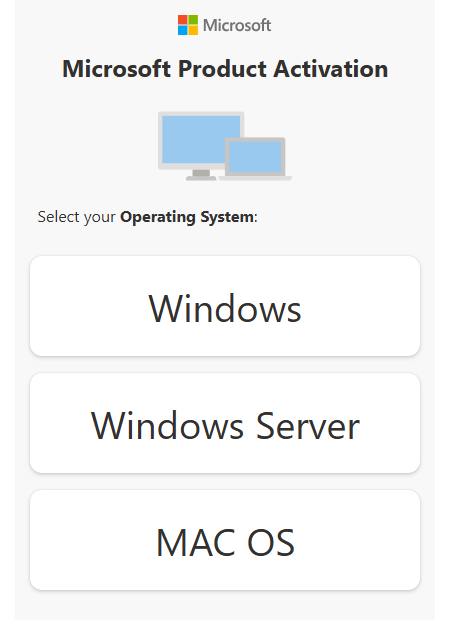
Select your operating system.
Choose your Office version, e.g. Office 2019 or Office 2021.
Enter the Installation ID you obtained earlier and click "Submit".
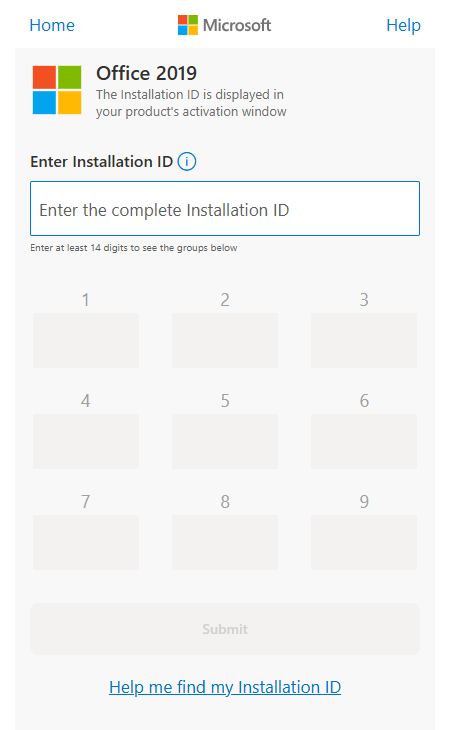
After validation, you’ll receive a long Confirmation ID – write it down carefully.
IV. Enter the Confirmation ID
Return to the Activation Wizard – on the screen where you copied your Installation ID, you'll see empty fields to enter the Confirmation ID.
Type the numbers provided by the Activation Portal into the corresponding fields.
Click Activate to finalize the process.